
|
| xlsgen > overview > Auto-filters and custom filters |
|
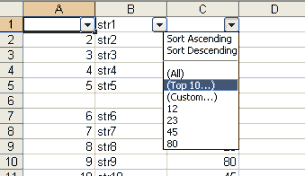
Auto-filters provide users an interactive way to put constraints on how data is displayed.
Using xlsgen, you can programmatically :
Due to historical Excel limitations, the following applies :
xlsgen supports the creation of auto-filters, through the IXlsRange object interface. It returns a IXlsAutoFilter object.
| Java code |
XlsRange range = wksht3.NewRange("R1C1:R5C3");
range.NewAutoFilter();
|
| VB code |
Dim range As IXlsRange
Set range = wksht3.NewRange("R1C1:R5C3")
range.NewAutoFilter
|
| C# code |
IXlsRange range = wksht3.NewRange("R1C1:R5C3");
range.NewAutoFilter();
|
| C++ code |
xlsgen::IXlsRangePtr range = wksht3->NewRange(L"R1C1:R5C3"); range->NewAutoFilter(); |
You can add custom filters to one or more columns of an auto-filter group. When more than one column have custom filters, the filter engine combines them by cascading results. A filter in a column is accessed by an index : for instance the left column has index 1, and the right-most column of a 4-column auto-filter is 4.

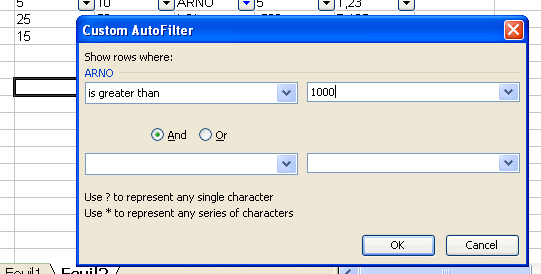
Operands in custom expressions are strings, surrounded by double-quotes, and numbers, integer and floating-point.
Custom expressions support the following operators for both strings and numbers :
| operator | description |
| = | equal |
| <> | not equal |
| > | greater than |
| >= | greater than or equal |
| < | less than |
| <= | less than or equal |
With string operands, it is possible to emulate 6 other operators thanks to the ? and * wildcards. ? replaces any character. * replaces one or more characters. The additional string operators are :
| operator | description | example |
| = | contains | = "*ED*" |
| <> | does not contain | <> "*ED*" |
| = | begins with | = "ED*" |
| <> | does not begin with | <> "ED*" |
| = | ends with | = "*ED" |
| <> | does not end with | <> "*ED" |
A custom expression can use the AND or OR logical operator to combine two conditions. Due to a historical Excel limitation, it is not possible to specify more than two conditions in the same custom expression.
Here are examples :
When setting a custom expression, xlsgen does not only store the custom expressions in the Excel file, a filter engine computes the resulting layout based on these.
| Java code |
XlsRange range = wksht3.NewRange("R1C1:R5C3");

XlsAutoFilter af = range.NewAutoFilter();

// filter 2nd column : keep all rows where name contains a A
af.getCustomFilter(2).putCustomExpression("= \"*A*\"");

// combine with filter on 3rd column : keep all rows where sales are less than 50
af.getCustomFilter(3).putCustomExpression("< 50");
|
| VB code |
Dim range As IXlsRange
Set range = wksht3.NewRange("R1C1:R5C3")

Dim af As IXlsAutoFilter
Set af = range.NewAutoFilter

' filter 2nd column : keep all rows where name contains a A
af.CustomFilter(2).CustomExpression = "= " & Chr(34) & "*A*" & Chr(34) & ""

' combine with filter on 3rd column : keep all rows where sales are less than 50
af.CustomFilter(3).CustomExpression = "< 50"
|
| C# code |
IXlsRange range = wksht3.NewRange("R1C1:R5C3");

IXlsAutoFilter af = range.NewAutoFilter();

// filter 2nd column : keep all rows where name contains a A
af.get_CustomFilter(2).CustomExpression = "= \"*A*\"";

// combine with filter on 3rd column : keep all rows where sales are less than 50
af.get_CustomFilter(3).CustomExpression = "< 50";
|
| C++ code |
xlsgen::IXlsRangePtr range = wksht3->NewRange(L"R1C1:R5C3"); xlsgen::IXlsAutoFilterPtr af = range->NewAutoFilter(); // filter 2nd column : keep all rows where name contains a A af->CustomFilter[2]->CustomExpression = L"= \"*A*\""; // combine with filter on 3rd column : keep all rows where sales are less than 50 af->CustomFilter[3]->CustomExpression = L"< 50"; |
Whenever a custom filter is added, xlsgen applies the filters, which results in hiding rows according to filters. But the client application may ask for filters to be applied at any time, for instance after a cell value change. That is possible thanks to xlsgen's built-in filter engine (a micro-calculation engine).
| C++ code |
xlsgen::IXlsWorksheetPtr wksht = workbook->WorksheetByIndex[1]; wksht->AutoFilters->Apply(); |
Alternatively to custom expressions, it is possible to use one of the following predefined filters :
| C++ code |
xlsgen::IXlsRangePtr range1 = wksht1->NewRange(L"C2:C13"); xlsgen::IXlsAutoFilterPtr af1 = range1->NewAutoFilter(); // filter 2nd column : four top values af1->CustomFilter[2]->TopValues(4); ... xlsgen::IXlsStylePtr style = wksht2->NewStyle(); style->Pattern->Pattern = xlsgen::pattern_solid; style->Pattern->BackgroundColor = xlsgen::colorYellow; xlsgen::IXlsRangePtr range2 = wksht2->NewRange(L"C2:C13"); xlsgen::IXlsAutoFilterPtr af2 = range2->NewAutoFilter(); // filter 1st column : match all cells having a yellow background color af2->CustomFilter[1]->MatchStyle(style); |

Note : xlsgen's built-in filter engine applies the filtering by style (MatchStyle) to both XLS and XLSX spreadsheets, but when it comes to writing to files, the filter definition itself is only saved in XLSX spreadsheets in which the file format has such a mechanism available. Yet, a client application can take full advantage of the xlsgen's built-in filter engine, combined with the ability to apply and re-apply filters.
A simple method call erases auto-filters in the current worksheet :
| C++ code |
xlsgen::IXlsWorksheetPtr wksht = workbook->WorksheetByIndex[1]; wksht->AutoFilters->Delete(); |
xlsgen documentation. © ARsT Design all rights reserved.