
|
| xlsgen > overview > Check Update tool |
|
The xlsgen Check Update tool comes handy whenever you'd like to know if an updated version of xlsgen is available online.

Furthermore, this tool also provides a convenient way to know which version you are running, and a mechanism for updating the installed version.
Find the shortcut in the Start Menu, or double-click on the executable called Check Update.exe. This tool is a two-step wizard which does not require any other action than clicking on the Next button.
On the first page, the tool explains that, because it makes a connection to the xlsgen website, there is a great likelihood that your Internet firewall prompts and ask you to allow or block a process known as Check Update.exe to send a web request.
Upon clicking the Next button, that's when the tool does its job. It will connect to the net, actually send a request to the following url : http://xlsgen.arstdesign.com/support.html (which you may rely on, just in case).
The online version number available is compared to current version installed on your machine, and this allows to display a statement telling you whether or not an update is available.
This history of minor updates is also displayed, to let you know whether an update might be interesting. Note that the history of minor updates is also available here. Also, detailed changes are described here.
In addition to this, at the bottom is displayed the current version of xlsgen, and whether or not you are registered.
Product version numbers are of the form <major product revision>.<minor product revision>.<major build revision>.<minor build revision>
Examples of product versions are 1.9.0.3 and 2.0.0.0. 1.9.0.3 means version 1.9 public build 3. The 3 public builds since the public RTM build release can be either bug fixes (most likely) or minor updates (like the addition of code samples). 2.0.0.0 compares to 1.9.0.3 as a major update, and an RTM release for that matter (i.e. the first public build of the major update).
Whenever there is a difference between the installed version and the version available on the website, the tool shows links. The two links are :
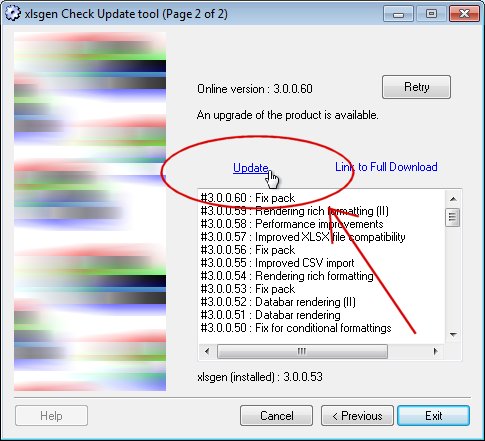
Whenever the check update tool sees a difference between the installed version and the available version online, with the notable exception of a major release where we expect you to use a full install process, the tool shows a link that, when clicked, starts an automatic and streamlined update process.

At the end of the update process, the 32-bit and 64-bit versions of xlsgen are updated.
Most of the time, this streamlined update mechanism is enough to ensure that you are running the latest version. With that said, none of the following are updated :
The RSS feed for the product is available from this web page.
xlsgen documentation. © ARsT Design all rights reserved.