
|
| xlsgen > overview > Import / Export |
|
xlsgen has flexible import and export facilities. You can :
The Excel 2003 XML file format is Microsoft Office's first attempt at saving Excel spreadsheets using XML. They retain much of what makes a spreadsheet, cells, formatting, formulas, a number of rich objects, but they lack some others by design, most notably charts. In 2006, Microsoft came with a much more mature file format, and that was XLSX files. Nevertheless a number of Excel customers still use this Excel 2003 XML file format because it is much richer and capable than say CSV files. xlsgen can read such file by just passing the filepath (or memory buffer) in the regular Open() method.
Imported features are :
The Excel XLSB file format is a binary file format that is meant to save all of the features of Excel XLSX files, but with load and save performance speed in mind. As a consequence, it is a completely different file format. xlsgen can read such file by just passing the filepath (or memory buffer) in the regular Open() method.
Imported features are :
There are two ways to import a CSV file. The most simple and intuitive way is to use the Open method from the IXlsEngine object, and pass it a CSV filename. The other way is to use the Import method from the IXlsWorksheet object.
The code sample import_csv, part of the install, shows how to use both ways.
To import a CSV file into an arbitrary Excel workbook, you can use the Open method from the IXlsEngine object. The benefits are that it is intuitive, simple to use, and that xlsgen's automatic data type discovery is used to ensure that the data is imported using the proper cell value types (strings, numbers, dates, currencies, ...). Here is an example of how to use the method :
| Java code |
XlsEngine engine = new XlsEngine();

XlsWorkbook wbk = engine.Open("datasource.csv", "ResultingFile.xls");

// do some work with the workbook
...

wbk.Close();
|
| VB code |
Dim engine As CoXlsEngine
Set engine = CreateObject("ExcelGenerator.ARsTDesign")

Dim wbk As IXlsWorkbook
Set wbk = engine.Open("datasource.csv", "ResultingFile.xls")

' do some work with the workbook
...

wbk.Close

Set engine = Nothing
|
| C# code |
xlsgen.CoXlsEngine engine = new xlsgen.CoXlsEngine();

IXlsWorkbook wbk = engine.Open("datasource.csv", "ResultingFile.xls");

// do some work with the workbook
...

wbk.Close();
engine = null;
|
| C/C++ code |
{
  xlsgen::IXlsEnginePtr engine( __uuidof(xlsgen::CoXlsEngine) );

  xlsgen::IXlsWorkbookPtr wbk;
  wbk = engine->Open(L"datasource.csv", L"ResultingFile.xls");

  // do some work with the workbook
  ...

  wbk->Close();
}
|
If you'd rather set one or more import options, then you probably want to try the other way.
The important benefits of the Import method available from the IXlsWorksheet interface is that you can use one or more of the flexible import options. Those options from the IXlsCSVImportOptions interface are :
SeparationCharacter)
DecimalCharacter)
ImportHeaders)
HeaderRows)
HeaderStyle)
PreserveWhitespace)
UTF8Encoding)
MultipleWorksheets)
AbortIfInvalidData)
ColumnPlacementByIndex)
ColumnDataTypeByIndex)
ColumnStyleByIndex)
ColumnFailIfEmptyByIndex)
ColumnFormulaByIndex) Two examples :
=2*CELL("contents") ; =CONCATENATE(CELL("contents");"string") ColumnDataMappingFormatByIndex).
ColumnConditionalImportFormulaByIndex). For instance, in order to limit imported rows to those whose particular ID column is greater than 50, the following formula can be used on the ID column : =CELL("contents") > 50.
Charset : this is where you pass a codepage identifier if the CSV file uses a specific encoding. For instance, "iso-8859-1" for the western europe codepage. For a list of existing charsets, take a look here (wikipedia).
Language : this is where you specify the language used to specify currencies, dates, number decimal and thousands grouping, ... An example of language is "en-US", where the first two characters specify the country abbreviation (en = English, ...) followed by a secondary country abbreviation (US = USA, ...) for instance to disambiguate en-US and en-GB. For the list of coding languages, take a look here (wikipedia).
ColumnSplitByName : the ability to define a separation character (or data length) inside a data cell. When this occurs, the data is imported in multiple independent columns.
ColumnJoinByName : joins columns specified by name.
AutoFormatMapping : sets whether the data should be mapped into numbers/formats combination wherever applicable. Default is : true.
FirstRow : sets the first row where the data is inserted during the import process. Default is : 1.
FirstColumn : sets the first column where the data is inserted during the import process. Default is : 1.
AutoFit : sets whether the columns should be auto-fit, i.e. automatically adjust to the largest width of the values in each column. Default : true.
Here is a simple example of how to use some of those options :
| Java code |
XlsEngine excel = new XlsEngine();

// we create a regular Excel file, and use the import interfaces
//  data types are bound
//  a special formatting style is used for the date column and the price column

XlsWorkbook workbook = engine.New("ResultingFile.xls");
XlsWorksheet wksht = workbook.AddWorksheet("Sheet1");

XlsStyle style = wksht.NewStyle();

XlsStyle styleDate = wksht.NewStyle();
styleDate.putFormat("dd-mmm-yyyy");
styleDate.Apply();

XlsStyle stylePrice = wksht.NewStyle();
stylePrice.getPattern().putBackgroundColor(0x00FF0000);
stylePrice.putFormat("###.00 $");
stylePrice.Apply();

style.Apply();

XlsCSVImportOptions options = wksht.getImport().getCSV().getOptions();
options.putColumnStyleByIndex(3, styleDate);
options.putColumnStyleByIndex(4, stylePrice);

wksht.getImport().getCSV().ImportFile("datasource.csv");
wksht.getColumns("A1:D1").putAutoFit(true);

workbook.Close();
|
| VB code |
Dim engine As CoXlsEngine
Set engine = CreateObject("ExcelGenerator.ARsTDesign")

' we create a regular Excel file, and use the import interfaces
'  data types are bound
'  a special formatting style is used for the date column and the price column


Dim wbk2 As xlsgen.IXlsWorkbook
Set wbk2 = engine.New("ResultingFile.xls")

Dim wksht2 As xlsgen.IXlsWorksheet
Set wksht2 = wbk2.AddWorksheet("Sheet1")

Dim style As xlsgen.IXlsStyle
Set style = wksht2.NewStyle()

Dim styleDate As xlsgen.IXlsStyle
Set styleDate = wksht2.NewStyle()
styleDate.Format = "dd-mmm-yyyy"
styleDate.Apply

Dim stylePrice As xlsgen.IXlsStyle
Set stylePrice = wksht2.NewStyle()
stylePrice.Pattern.BackgroundColor = &HFF0000
stylePrice.Format = "###.00 $"
stylePrice.Apply

style.Apply

Dim options As xlsgen.IXlsCSVImportOptions
Set options = wksht2.Import.CSV.options
options.ColumnStyleByIndex(3) = styleDate
options.ColumnStyleByIndex(4) = stylePrice

wksht2.Import.CSV.ImportFile ("datasource.csv")
wksht2.Columns("A1:D1").AutoFit = True

wbk2.Close

Set engine = Nothing
|
| C# code |
xlsgen.CoXlsEngine engine = new xlsgen.CoXlsEngine();

// we create a regular Excel file, and use the import interfaces
//  data types are bound
//  a special formatting style is used for the date column and the price column

IXlsWorkbook workbook = engine.New("ResultingFile.xls");
IXlsWorksheet wksht = workbook.AddWorksheet("Sheet1");

IXlsStyle style = wksht.NewStyle();

IXlsStyle styleDate = wksht.NewStyle();
styleDate.Format = "dd-mmm-yyyy";
styleDate.Apply();

IXlsStyle stylePrice = wksht.NewStyle();
stylePrice.Pattern.BackgroundColor = 0xFF0000;
stylePrice.Format = "###.00 $";
stylePrice.Apply();

style.Apply();

IXlsCSVImportOptions options = wksht.Import.CSV.Options;
options.set_ColumnStyleByIndex(3, styleDate);
options.set_ColumnStyleByIndex(4, stylePrice);

wksht.Import.CSV.ImportFile("datasource.csv");
wksht.get_Columns("A1:D1").AutoFit = 1;

workbook.Close();

engine = null;
|
| C/C++ code |
{
xlsgen::IXlsEnginePtr engine( __uuidof(xlsgen::CoXlsEngine) );

// we create a regular Excel file, and use the import interfaces
//  data types are bound
//  a special formatting style is used for the date column and the price column

xlsgen::IXlsWorkbookPtr workbook = engine->New(L"ResultingFile.xls");
xlsgen::IXlsWorksheetPtr wksht = workbook->AddWorksheet(L"Sheet1");

xlsgen::IXlsStylePtr style = wksht->NewStyle();

xlsgen::IXlsStylePtr styleDate = wksht->NewStyle();
styleDate->Format = L"dd-mmm-yyyy";
styleDate->Apply();

xlsgen::IXlsStylePtr stylePrice = wksht->NewStyle();
stylePrice->Pattern->BackgroundColor = 0xFF0000;
stylePrice->Format = L"###.00 $";
stylePrice->Apply();

style->Apply();

xlsgen::IXlsCSVImportOptionsPtr options = wksht->Import->CSV->Options;
options->ColumnStyleByIndex[3] = styleDate;
options->ColumnStyleByIndex[4] = stylePrice;

wksht->Import->CSV->ImportFile(L"datasource.csv");
wksht->Columns[L"A1:D1"]->AutoFit = TRUE;

workbook->Close();

}
|
And here is another example using custom data mapping :
| C/C++ code |
xlsgen::IXlsEnginePtr engine( __uuidof(xlsgen::CoXlsEngine) ); // we create a regular Excel file, and use the import interfaces // data types are custom bound // since we know the incoming data uses a particular data format xlsgen::IXlsWorkbookPtr workbook = engine->New(L"ResultingFile.xls"); xlsgen::IXlsWorksheetPtr wksht = workbook->AddWorksheet(L"Sheet1"); xlsgen::IXlsCSVImportOptionsPtr options = wksht->Import->CSV->Options; options->ColumnDataMappingFormatByIndex[1] = L"YYYY.MM.DD"; options->ColumnDataMappingFormatByIndex[2] = L"HH:MM"; wksht->Import->CSV->ImportFile(L"EURUSD_ticks.csv"); workbook->Close(); |
---- EURUSD_ticks.csv excerpt -----------------------------------------------
2011.10.25,03:00,1.39076,1.39092,1.39060,1.39061,41
2011.10.25,03:01,1.39062,1.39070,1.39029,1.39033,37
2011.10.25,03:02,1.39031,1.39044,1.39015,1.39042,55
2011.10.25,03:03,1.39040,1.39040,1.38997,1.38997,51
2011.10.25,03:04,1.38997,1.39028,1.38997,1.39018,48
2011.10.25,03:05,1.39017,1.39034,1.39009,1.39016,41
2011.10.25,03:06,1.39020,1.39025,1.39001,1.39009,55
2011.10.25,03:07,1.39017,1.39041,1.39014,1.39037,40
2011.10.25,03:08,1.39037,1.39078,1.39037,1.39077,40
2011.10.25,03:09,1.39079,1.39112,1.39079,1.39094,94
2011.10.25,03:10,1.39095,1.39107,1.39086,1.39091,71
2011.10.25,03:11,1.39093,1.39105,1.39087,1.39102,34
2011.10.25,03:12,1.39101,1.39102,1.39075,1.39098,57
2011.10.25,03:13,1.39098,1.39102,1.39077,1.39077,21
2011.10.25,03:14,1.39076,1.39078,1.39055,1.39061,72
---- EURUSD_ticks.csv excerpt -----------------------------------------------
If we import EURUSD_ticks.csv as is, without custom data mapping, the resulting will not read the first column as a date, but as a raw string (notice the left alignment), therefore unable to be play its role in Excel calculations and display. The second column will be read as a time which is correct but not displayed in a human-friendly manner. Here is a screen capture of what it would look like in Excel :

By applying custom data mapping for both first and second columns, the dates are correctly imported and time is correctly displayed :

Even though xlsgen cannot directly import an XML file, it's easy to transform an XML file into a CSV file thanks to a XSL stylesheet, and then import the CSV file itself. Here is an example of how it works. Let's say we have :
Here is books.xml :
<?xml version='1.0'?>
<!-- This file represents a fragment of a book store inventory database -->
<bookstore>
  <book genre="autobiography" publicationdate="1981" ISBN="1-861003-11-0">
    <title>The Autobiography, of Benjamin Franklin</title>
    <author>
      <first-name>Benjamin</first-name>
      <last-name>Franklin</last-name>
    </author>
    <price>8.99</price>
  </book>
  <book genre="novel" publicationdate="1967" ISBN="0-201-63361-2">
    <title>The Confidence Man</title>
    <author>
      <first-name>Herman</first-name>
      <last-name>Melville</last-name>
    </author>
    <price>11.99</price>
  </book>
  <book genre="philosophy" publicationdate="1991" ISBN="1-861001-57-6">
    <title>The Gorgias</title>
    <author>
      <name>Plato</name>
    </author>
    <price>9.99</price>
  </book>
</bookstore>
Here is the XSL stylesheet books_csv.xsl :
<!DOCTYPE stylesheet [
<!ENTITY newln "
">
]>
<xsl:stylesheet version="1.0" xmlns:xsl="http://www.w3.org/1999/XSL/Transform">
<xsl:output method="text" encoding="utf-8"/>
<xsl:template match="bookstore">
<xsl:apply-templates select="book"/>
</xsl:template>
<xsl:template match="book">
<xsl:if test="contains(@ISBN, ',')">"</xsl:if>
<xsl:value-of select="@ISBN"/>
<xsl:if test="contains(@ISBN, ',')">"</xsl:if>
<xsl:text>,</xsl:text>
<xsl:if test="contains(title, ',')">"</xsl:if>
<xsl:value-of select="title"/>
<xsl:if test="contains(title, ',')">"</xsl:if>
<xsl:text>,</xsl:text>
<xsl:apply-templates select="author"/>
<xsl:text>&newln;</xsl:text>
</xsl:template>
<xsl:template match="author">
<xsl:apply-templates select="last-name"/>
<xsl:apply-templates select="name"/>
</xsl:template>
<xsl:template match="last-name">
<xsl:if test="contains(., ',')">"</xsl:if>
<xsl:value-of select="."/>
<xsl:if test="contains(., ',')">"</xsl:if>
</xsl:template>
<xsl:template match="name">
<xsl:if test="contains(., ',')">"</xsl:if>
<xsl:value-of select="."/>
<xsl:if test="contains(., ',')">"</xsl:if>
</xsl:template>
</xsl:stylesheet>
Note :
xls:if statements in it that are meant to try to catch whether the content uses commas, the field separator, in which case the content must be enclosed in double-quotes.XSLT processors are common on every single programming platform. In the following, we are going to use the XSLT processor that is part of the .NET run-time, but suffice to say there are many others (for instance, for C/C++ developers, there is libxslt).
The following .NET code simply processes the transform :
using System.IO;
using System.Xml;
using System.Xml.Xsl;
using System.Xml.XPath;

XPathDocument input = new XPathDocument ("books.xml"); // input XML file

XslTransform trans = new XslTransform();
trans.Load("books_csv.xsl"); // XSL stylesheet

XmlTextWriter destination = new XmlTextWriter("result.csv", null); // output CSV file
trans.Transform(input, null, destination);
destination.Close();
And the resulting CSV file is :
1-861003-11-0,"The Autobiography, of Benjamin Franklin",Franklin
0-201-63361-2,The Confidence Man,Melville
1-861001-57-6,The Gorgias,Plato
With the CSV file in hands, it's now possible to import it in xlsgen directly. How it works is explained in previous sections of this page.
xlsgen imports structured data inside an XML file/stream/buffer with and without XPath selection. xlsgen provides auto-import and custom-import. Auto-import infers table columns as well as data types. Custom import lets you add personal formatting, particularly number and color formatting.
Auto-import XML files is achieved by passing an XML file (local or url) to the engine Open() method. Auto-import will find structured data inside the XML document.
For instance here is a sample XML document, a bookstore holding a number of books :
<?xml version="1.0" encoding="UTF8"?>
<Bookstore>
   <!--J&R Booksellers Database-->
   <Book Genre="" In_Stock="Yes">
      <Title>The Round Door</Title>
      <Author>Tom Evans</Author>
      <Year_Published>1996</Year_Published>
      <ISBN>0-9546-0274-3</ISBN>
      <Price>$23.00</Price>
      <Review>An Intriguing Tale Of A Round Door In A Wall</Review>
   </Book>
   <Book Genre="Non-Fiction" In_Stock="Yes">
      <Title>Creating Real Xml Applications</Title>
      <Author>Bill Eaton</Author>
      <Year_Published>1998</Year_Published>
      <ISBN>7-4562-0167-8</ISBN>
      <Price>$35.00</Price>
      <Review>A Look At How To Build Real Xml Applications</Review>
   </Book>
   <Book Genre="Fiction" In_Stock="No">
      <Title>Over The Hills Of Yukon2</Title>
      <Author>Bert Colewell</Author>
      <Year_Published>1993</Year_Published>
      <ISBN>5-6524-3054-1</ISBN>
      <Price>$22.00</Price>
      <Review>A Warm Story About A Man And A Moose In Yukon</Review>
   </Book>
   <Book Genre="Fiction" In_Stock="Yes">
      <Title>The Lion's Gold</Title>
      <Author>Daphne Griswald</Author>
      <Year_Published>1989</Year_Published>
      <ISBN>6-7896-2498-2</ISBN>
      <Price>$15.00</Price>
      <Review>One Of The Most Compelling Books Since "The Tiger's Silver".</Review>
   </Book>
</Bookstore>
In order to import the books into a spreadsheet, the following sample code can be used :
| Java code |
XlsEngine engine = new XlsEngine();

XlsWorkbook wbk = engine.Open("C:\\tmp\\Bookstore.xml", "output.xlsx" );
wbk.Close();
|
| VB/VB.NET code |
Dim engine
Set engine = CreateObject("ExcelGenerator.ARsTdesign")

Dim wbk As IXlsWorkbook
Set wbk = engine.Open "C:\tmp\Bookstore.xml", "output.xlsx"
wbk.Close
|
| C# code |
CoXlsEngine engine = new CoXlsEngine();

IXlsWorkbook wbk = engine.Open("C:\\tmp\\Bookstore.xml", "output.xlsx" );
wbk.Close();
|
| C/C++ code |
xlsgen::IXlsEnginePtr engine( __uuidof(xlsgen::CoXlsEngine) ); xlsgen::IXlsWorkbookPtr wbk = engine->Open(L"C:\\tmp\\Bookstore.xml", L"output.xlsx" ); wbk->Close(); |

XML document imported in xlsgen
Custom-import is available in the worksheet import interface. If for the need of an application, the structured data must be filtered or selected inside the XML document, it is possible to pass an XPath selector, which is available in the custom import interface.
Here are XPath selection examples :
Fully qualified path to the XML elements of interest. In the example above, this is the list of all 4 books.
XML elements of interest that are direct or indirect descendant. In the example above, this is the list of all 4 books.
2nd element of the XML element list of interest. In the example above, this selection includes the book by Bill Eaton
2nd and 3rd elements of the XML element list of interest. In the example above, this selection includes the books by Bill Eaton and Bert Colewell
And here is the corresponding source code :
| Java code |
XlsEngine engine = new XlsEngine(); XlsWorkbook wbk = engine.New( "output.xlsx" ); XlsWorksheet wksht = wbk.AddWorksheet( "Sheet1" ); wksht.getImport().getXML().getOptions().putXPath( "/Bookstore/Book" ); wksht.getImport().getXML().ImportFile( "C:\\tmp\\Bookstore.xml" ); wbk.Close(); |
| VB/VB.NET code |
Dim engine
Set engine = CreateObject("ExcelGenerator.ARsTdesign")

Dim wbk As IXlsWorkbook
Set wbk = engine.New( "output.xlsx" )

Dim wksht As IXlsWorksheet
Set wksht = wbk.AddWorksheet( "Sheet1" )

wksht.Import.XML.Options.XPath = "/Bookstore/Book"
wksht.Import.XML.ImportFile( "C:\\tmp\\Bookstore.xml" )

wbk.Close
|
| C# code |
CoXlsEngine engine = new CoXlsEngine(); IXlsWorkbook wbk = engine.New( "output.xlsx" ); IXlsWorksheet wksht = wbk.AddWorksheet( "Sheet1" ); wksht.Import.XML.Options.XPath = "/Bookstore/Book"; wksht.Import.XML.ImportFile( "C:\\tmp\\Bookstore.xml" ); wbk.Close(); |
| C/C++ code |
xlsgen::IXlsEnginePtr engine( __uuidof(xlsgen::CoXlsEngine) ); xlsgen::IXlsWorkbookPtr wbk = engine->New( L"output.xlsx" ); xlsgen::IXlsWorksheetPtr wksht = wbk->AddWorksheet( L"Sheet1" ); wksht->Import->XML->Options->XPath = L"/Bookstore/Book"; wksht->Import->XML->ImportFile( L"C:\\tmp\\Bookstore.xml" ); wbk->Close(); |
Other custom XML import options are :
Many web pages include HTML-based table data that a business application may be interested in importing in a regular spreadsheet.
An arbitrary URL can be passed to the Open() method. It is also possible to customize the import (column styles including number formats, header style) by invoking a regular import process exposed in the IXlsWorksheetImport interface. And to import a web page stored in a memory buffer.
The internal xlsgen algorithm parses the HTML markup, finds tables, aggregates data in it, and imports the most consistent set.
Here is an example.
The URL is http://www.insee.fr/fr/themes/info-rapide.asp?id=10&date=20150807
A screenshot of which is :
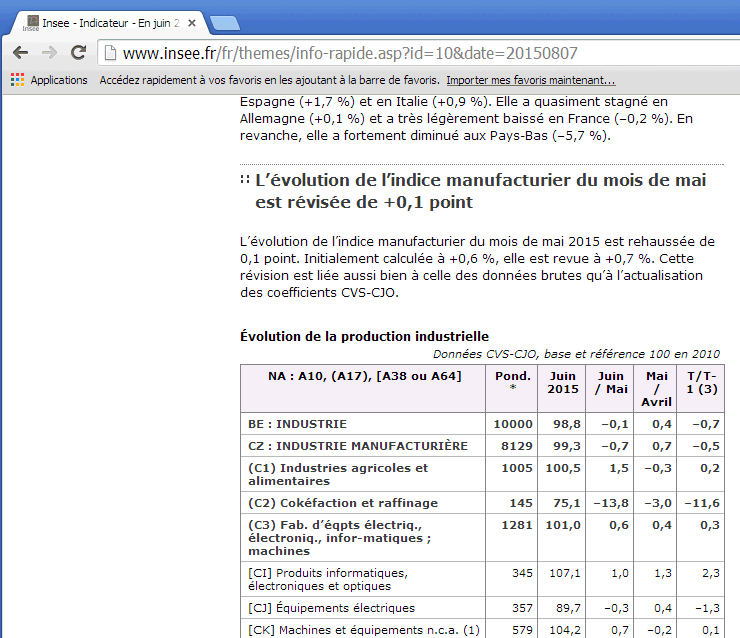

Here is a first sample code :
| C/C++ code |
xlsgen::IXlsEnginePtr engine( __uuidof(xlsgen::CoXlsEngine) ); xlsgen::IXlsWorkbookPtr wbk; wbk = engine->Open(L"http://www.insee.fr/fr/themes/info-rapide.asp?id=10&date=20150807", L"output.xlsx" ); wbk->Close(); |
And another sample code which uses custom html options :
| C/C++ code |
xlsgen::IXlsEnginePtr engine( __uuidof(xlsgen::CoXlsEngine) ); xlsgen::IXlsWorkbookPtr wbk = engine->New( L"output.xlsx" ); xlsgen::IXlsWorksheetPtr wksht = wbk->AddWorksheet(L"Sheet1"); xlsgen::IXlsHTMLImportPtr html = wksht->Import->HTML; xlsgen::IXlsStylePtr style = wksht->NewStyle(); style->Pattern->BackgroundColor = 0xFF0000; html->Options->ColumnStyleByIndex[2] = style; html->ImportFromURL(L"http://www.insee.fr/fr/themes/info-rapide.asp?id=10&date=20150807"); wbk->Close(); |
Other custom HTML import options are :
JSON (Javascript Object Notation) is all the rage in modern web applications and has taken over XML for storing data in streams thanks to how much it fits with the Javascript programming language. JSON is highly hierarchical in nature and defines several data types so that a consumer application knows upfront the type of data it is dealing with (with the notable exception of dates which remain application-specific).
(sample JSON)

{
    "count":2,
    "cache":false,
    "environment":"live",
    "remainingAccesses":231,
    "data":[
        {"date":"2013-12-09", "service":"Be On", "campaign_id":17088, "campaign_name":"DE Peek & Cloppenburg Review Urban Karaoke",
"project_id":119, "websites":3, "impressions":48, "views":1, "views_paid":0, "redirects":0, "playtoends":0},
        {"date":"2013-12-09", "service":"Be On", "campaign_id":17280, "campaign_name":"DE Telekom Technischer Support",
"project_id":137, "websites":4, "impressions":189, "views":47, "views_paid":0, "redirects":2, "playtoends":9}
    ]
}
xlsgen can import any JSON stream from a regular URL, a file or a memory buffer. The import process is exposed in the IXlsWorksheetImport interface. A JSON stream can also be read by passing the URL directly to the workbook Open() method.
The import can be customized to provide styles on a per column basis.
xlsgen automatically infers hierarchies, cardinalities and what looks like a table set.
| C/C++ code |
xlsgen::IXlsJSONImportPtr json = worksheet->Import->JSON; xlsgen::IXlsStylePtr style = worksheet->NewStyle(); style->Pattern->BackgroundColor = 0xFFFF00; style->Font->Italic = TRUE; json->Options->ColumnStyleByName[L"City"] = style; json->ImportFile(L"input\\jsonfile3.json"); |
Other custom JSON import options are :
If you are programming the xlsgen object model with a .NET programming language, chances are you are also dealing with .NET datasets (the System.Data.DataSet class). xlsgen provides no direct .NET support through the object model since it would make it .NET-dependent, but there is one code sample (called dataset) as part of the install which explains how to import a general purpose .NET dataset. The code sample shows how to preserve the dataset column data types when doing the import into the Excel workbook.
The following is the C# version of the code sample :
| C# code |
// this sample code reads a .NET dataset and imports it in xlsgen

string conString = @"Provider=Microsoft.Jet.OLEDB.4.0;" +
                   @" Data Source=sampledatabase.mdb";

OleDbConnection con = new OleDbConnection(conString);

try
{
    con.Open();
}
catch (Exception e)
{
    Console.WriteLine(e.Message);
    return;
}

string strSql = "select * from Datasource";

OleDbDataAdapter dadapter = new OleDbDataAdapter();
dadapter.SelectCommand = new OleDbCommand(strSql, con);
DataSet ds = new DataSet();

dadapter.Fill(ds);

Console.WriteLine ("Database dump\n-------------");

foreach (DataTable t in ds.Tables)
{
    Console.WriteLine(t.TableName);
    foreach (DataRow r in t.Rows)
    {
        foreach (DataColumn c in t.Columns)
            if (r[c] != null)
                 Console.Write(" " + r[c]);
        Console.WriteLine();
    }
}

// sample code follows

CoXlsEngine engine = new CoXlsEngine();

IXlsWorkbook workbook = engine.New("dataset.xls");
IXlsWorksheet worksheet = workbook.AddWorksheet("Sheet1");

IXlsStyle styleDate = null;


DataTable datasource = ds.Tables[0];

int nbcolumns = datasource.Columns.Count;

foreach (DataColumn c in datasource.Columns)
{
    int row = 0;
    foreach (DataRow r in datasource.Rows)
    {
        worksheet.DefaultStyle = 16;

        switch (c.DataType.ToString())
        {
            case "System.Boolean" :
            case "System.Byte" :
            case "System.Int16" :
            case "System.Int32" :
            case "System.Int64" :
            case "System.SByte" :
            case "System.UInt16" :
            case "System.UInt32" :
            case "System.UInt64" :
                {
                    worksheet.set_Number(1 + row, 1 + c.Ordinal, (int) r[c]);
                }
                break;
            case "System.Decimal" :
            case "System.Single" :
            case "System.Double" :
                {
                    worksheet.set_Float(1 + row, 1 + c.Ordinal, (double) r[c]);
                }
                break;
            case "System.Char" :
            case "System.String" :
                {
                    worksheet.set_Label(1 + row, 1 + c.Ordinal, r[c].ToString());
                }
                break;
            case "System.DateTime" :
            case "System.TimeSpan" :
                {
                    if (styleDate == null)
                    {
                        styleDate = worksheet.NewStyle();
                        styleDate.Format = "dd-mmm-yyyy";
                    }

                    styleDate.Apply();

                    worksheet.set_Date(1 + row, 1 + c.Ordinal, r[c].ToString());
                }
                break;


        }

        row++;
    }

    Console.WriteLine();
}

workbook.Close();

con.Close();
|
If you are manipulating a SQL data source, you probably want to use the data source queries mechanism that is built in xlsgen.
Export includes the ability to save the content as a .NET dataset, CSV (semi-colon separated values), as XML (angle brackets, fixed schema) and as PDF.
If you are programming the xlsgen object model with a .NET programming language, chances are you are also dealing with .NET datasets (the System.Data.DataSet class). xlsgen provides no direct .NET support through the object model since it would make it .NET-dependent, but there is one code sample (called dataset_creation, in VB.NET and C#) as part of the install which explains how to export a general purpose .NET dataset. The code sample shows how to preserve the worksheet data types in cells across the process.
The following is the C# version of the code sample :
| C# code |
// open a worksheet with a data source in it

CoXlsEngine engine = new CoXlsEngine();

IXlsWorkbook wbk = engine.Open("Book1_datasource.xls", "");

IXlsWorksheet wksht = wbk.get_WorksheetByIndex(1);


// grab the data source boundaries

int rowmin = wksht.Dimensions.FirstRow;
int rowmax = wksht.Dimensions.LastRow;
int colmin = wksht.Dimensions.FirstColumn;
int colmax = wksht.Dimensions.LastColumn;


// create a generic dataset

DataTable workTable = new DataTable("data source");


// create columns

for (int c = colmin; c <= colmax; c++)
{
    xlsgen.enumDataType dt = wksht.get_CellType(rowmin, c);
    switch (dt)
    {
        case enumDataType.datatype_notapplicable:
        case enumDataType.datatype_string:
            {
                workTable.Columns.Add(null, typeof(String));
            }break;
        case enumDataType.datatype_time:
        case enumDataType.datatype_date:
        case enumDataType.datatype_datetime:
            {
                workTable.Columns.Add(null, typeof(DateTime));
            }break;
        case enumDataType.datatype_number:
        case enumDataType.datatype_boolean:
        case enumDataType.datatype_error:
            {
                workTable.Columns.Add(null, typeof(int));
            }break;
        case enumDataType.datatype_float:
        case enumDataType.datatype_double:
            {
                workTable.Columns.Add(null, typeof(double));
            }break;
        default: break;
    }
}


// fetch the data

for (int r = rowmin; r <= rowmax; r++)
{
    DataRow dr = workTable.NewRow();

    for (int c = colmin; c <= colmax; c++)
    {
        xlsgen.enumDataType dt = wksht.get_CellType(rowmin, c);

        DataColumn dc = workTable.Columns[c - colmin];

        switch (dt)
        {
            case enumDataType.datatype_notapplicable:
            case enumDataType.datatype_string:
                {
                    dr[dc] = wksht.get_Label(r, c);
                } break;
            case enumDataType.datatype_time:
            case enumDataType.datatype_date:
            case enumDataType.datatype_datetime:
                {
                    dr[dc] = DateTime.FromOADate(wksht.get_Float(r, c));
                } break;
            case enumDataType.datatype_number:
            case enumDataType.datatype_boolean:
            case enumDataType.datatype_error:
                {
                    dr[dc] = wksht.get_Number(r, c);
                } break;
            case enumDataType.datatype_float:
            case enumDataType.datatype_double:
                {
                    dr[dc] = wksht.get_Float(r, c);
                } break;
            default: break;
        }
    }

    workTable.Rows.Add(dr);
}


wbk.Close();


// write the data table's contents in XML

workTable.WriteXml("Book1_datasource.xml");
|
CSV is a semi-colon separated file format. CSV actually stands for comma-separated values, but for many years in the software industry commas have proven to be problematic to disambiguate floating point separators, locales and content. The worksheet is a grid whose content is exported as CSV where each row of the grid is expressed as semi-colon separated fields, ending with a carriage return character. Whenever the content contains a semi-colon, the content is surrounded by double quotes. Double quotes in content are themselves doubled. By definition, a CSV file does not define the dimensions of the worksheet. It's raw content. That said, the width and height can be computed by reading the file and incrementing an appropriate counter.
Optionally, exporting to CSV renders numbers according to their associated number formats. By default, raw numbers are exported as such. For instance 8.506 with an associated 0.00 number format will be exported as 8.506. When the number formatting option is set, see the options interface, 8.506 is exported as 8.51, assuming the user's regional settings for decimal separators is the dot character (i.e. 8,51 if the user's regional settings for decimal separators is the comma character).
Exporting the content of a worksheet as CSV is analogous to XML.See the IXlsWorksheetExport interface. The difference is that the developer can choose the encoding between UTF-8 and the current local charset.
Here is an example CSV file :
ID;DESCRIPTION;DATE;PRICE
45;description1;10/06/2006;10,2
12;description2;11/06/2006;5,25
32;description3;12/06/2006;6,3
86;description4;13/06/2006;9,99
74;description5;14/06/2006;4,45
29;description6;15/06/2006;8,5
31;description7;16/06/2006;7
56;description8;17/06/2006;11,5
52;description9;18/06/2006;11
And here is how to export a worksheet as CSV with code :
| VB code |
Dim engine As CoXlsEngine
Set engine = CreateObject("ExcelGenerator.ARsTDesign")

Dim wbk As IXlsWorkbook
Set wbk = engine.Open("C:\input\MyExistingFile.xls", "C:\output\ResultingFile.xls")

' get the second worksheet
Dim wksht002 As IXlsWorksheet
Set wksht002 = wbk.WorksheetByIndex(2)

' export the worksheet as csv (export the content, UTF-8 encoding)
wksht002.Export.ExportAsCSV("filename.csv", True)

wbk.Close

Set engine = Nothing
|
| C# code |
xlsgen.CoXlsEngine excel = new xlsgen.CoXlsEngine();

IXlsWorkbook wbk = excel.Open( @"C:\input\MyExistingFile.xls", "" );

// get the second worksheet
IXlsWorksheet wksht002 = wbk.get_WorksheetByIndex(2);

// export the worksheet as csv (export the content, UTF-8 encoding)
wksht002.Export.ExportAsCSV("filename.csv", 1 /*use UTF8 encoding*/);

wbk.Close();
excel = null;
|
| C/C++ code |
{
  xlsgen::IXlsEnginePtr engine( __uuidof(xlsgen::CoXlsEngine) );

  xlsgen::IXlsWorkbookPtr wbk;
  wbk = engine->Open(L"C:\\input\\MyExistingFile.xls", L"" );

  // get the second worksheet
  xlsgen::IXlsWorksheetPtr wksht002 = wbk->WorksheetByIndex[2];

  // export the worksheet as csv (export the content, UTF-8 encoding)
  wksht002->Export->ExportAsCSV(L"filename.csv", TRUE /*use UTF8 encoding*/);

  wbk->Close();
}
|
The XML export provides a cross-platform way to save content. XML content follows a schema. The schema used cannot be controlled by the developer, although this could happen in the future based on demand. The schema is conside and self-descriptive to maximize the usefulness of using XML in the first place. The encoding defaults to UTF-8 which means strings are encoded in ways understandable in any country of the world.
The XML output is made of a header followed by the content of the worksheet. The content of the worksheet is a collection of rows. Each rows contains a collection of columns. Each column contains the content of a cell. At this point, the developer can optionally choose to add what is known as data types. Data types are quite verbose but provide a great way to know which data type identifies a given cell, for instance a time type. After all, the more typed the content is, the more accurate are operations made on them. Here is an example of XML content :
<?xml version="1.0"?>
<WORKSHEET NAME="Feuil1">
<DIMENSIONS>
 <ROWMIN>4</ROWMIN>
 <ROWMAX>4</ROWMAX>
 <COLMIN>3</COLMIN>
 <COLMAX>5</COLMAX>
</DIMENSIONS>
<ROWS>
  <R>
    <C T="number">2</C>
    <C T="number">3</C>
    <C T="number">4</C>
  </R>
 </ROWS>
</WORKSHEET>
Producing the XML for a given worksheet is achieved by requesting the Export object from the worksheet (see the IXlsWorksheetExport interface), and then call the exporter of your choice with appropriate parameters.
| VB code |
Dim engine As CoXlsEngine
Set engine = CreateObject("ExcelGenerator.ARsTDesign")

Dim wbk As IXlsWorkbook
Set wbk = engine.Open("C:\input\MyExistingFile.xls", "C:\output\ResultingFile.xls")

' get the second worksheet
Dim wksht002 As IXlsWorksheet
Set wksht002 = wbk.WorksheetByIndex(2)

' export the worksheet as xml (export the content and data types)
wksht002.Export.ExportAsXML("filename.xml", True)

wbk.Close

Set engine = Nothing
|
| C# code |
xlsgen.CoXlsEngine excel = new xlsgen.CoXlsEngine();

IXlsWorkbook wbk = excel.Open( @"C:\input\MyExistingFile.xls", "" );

// get the second worksheet
IXlsWorksheet wksht002 = wbk.get_WorksheetByIndex(2);

// export the worksheet as xml (export the content and data types)
wksht002.Export.ExportAsXML("filename.xml", 1 /*datatype*/);

wbk.Close();
excel = null;
|
| C/C++ code |
{
  xlsgen::IXlsEnginePtr engine( __uuidof(xlsgen::CoXlsEngine) );

  xlsgen::IXlsWorkbookPtr wbk;
  wbk = engine->Open(L"C:\\input\\MyExistingFile.xls", L"" );

  // get the second worksheet
  xlsgen::IXlsWorksheetPtr wksht002 = wbk->WorksheetByIndex[2];

  // export the worksheet as xml (export the content and data types)
  wksht002->Export->ExportAsXML(L"filename.xml", TRUE /*datatype*/);

  wbk->Close();
}
|
In the content, some characters are replaced with XML entities. These are :
The PDF file format makes xlsgen even more suitable for reporting purposes. Very often, Adobe's PDF documents are the best choice to ensure 1) same rendering on any operating system 2) read-only document 3) compact size.
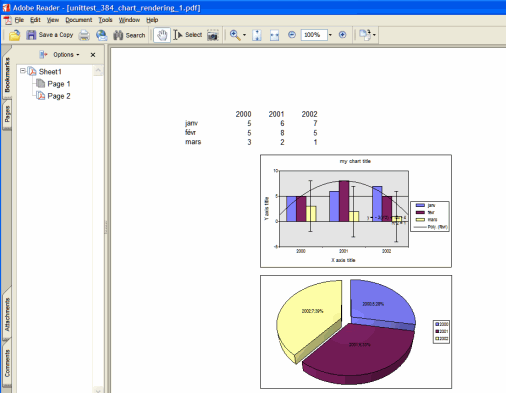
The PDF file output supported natively by xlsgen is compatible with Adobe Acrobat Reader 5.0 and above, and other products from the Acrobat family.
How to export a worksheet as PDF is straight forward :
| Java code |
XlsEngine engine = new XlsEngine();

XlsWorkbook wbk = engine.Open("C:\\input\\MyExistingFile.xls", "");

// export the second worksheet as pdf
wbk.getWorksheetByIndex(2).getExport().ExportAsPDF("C:\\output\\filename.pdf");

wbk.Close();
|
| VB code |
Dim engine As CoXlsEngine
Set engine = CreateObject("ExcelGenerator.ARsTDesign")

Dim wbk As IXlsWorkbook
Set wbk = engine.Open("C:\input\MyExistingFile.xls", "")

' export the second worksheet as pdf
wbk.WorksheetByIndex(2).Export.ExportAsPDF("C:\output\filename.pdf")

wbk.Close

Set engine = Nothing
|
| C# code |
xlsgen.CoXlsEngine engine = new xlsgen.CoXlsEngine(); IXlsWorkbook wbk = engine.Open( @"C:\input\MyExistingFile.xls", "" ); // export the second worksheet as pdf wbk.get_WorksheetByIndex(2).Export.ExportAsPDF(@"C:\output\filename.pdf"); wbk.Close(); |
| C/C++ code |
xlsgen::IXlsEnginePtr engine( __uuidof(xlsgen::CoXlsEngine) ); xlsgen::IXlsWorkbookPtr wbk = engine->Open(L"C:\\input\\MyExistingFile.xls", L"" ); // export the second worksheet as pdf wbk->WorksheetByIndex[2]->Export->ExportAsPDF(L"C:\\output\\filename.pdf"); wbk->Close(); |
Another way to create PDF files is to pass .pdf filenames directly when making a New(), Open(), NewInMemory(), OpenInMemory() call. Doing so orders xlsgen to create a PDF output file representing the entire spreadsheet (not just the current worksheet of the spreadsheet as in above). This mechanism makes xlsgen as much a genuine PDF generator than an Excel generator :
| Java code |
XlsEngine engine = new XlsEngine();

XlsWorkbook wbk = engine.New( "output.pdf" );

XlsWorksheet wksht = wbk.AddWorksheet("samplesheet");
wksht.setLabel(1,2, "Hello world!");

wbk.Close();
|
| VB code |
Dim engine As CoXlsEngine
Set engine = CreateObject("ExcelGenerator.ARsTDesign")

Dim wbk As IXlsWorkbook
Set wbk = engine.New( "output.pdf" )

Dim wksht As IXlsWorksheet
Set wksht = wbk.AddWorksheet("samplesheet")

wksht.Label(1,2) = "Hello world!"

wbk.Close

Set engine = Nothing
|
| C# code |
xlsgen.CoXlsEngine engine = new xlsgen.CoXlsEngine(); IXlsWorkbook wbk = engine.New( "output.pdf" ); IXlsWorksheet wksht = wbk.AddWorksheet( "samplesheet" ); wksht.set_Label(1,2, "Hello world!"); wbk.Close(); |
| C/C++ code |
xlsgen::IXlsEnginePtr engine( __uuidof(xlsgen::CoXlsEngine) ); xlsgen::IXlsWorkbookPtr wbk = engine->New( L"output.pdf" ); xlsgen::IXlsWorksheetPtr wksht = wbk->AddWorksheet( "samplesheet" ); wksht->Label[1][2] = L"Hello world!"; wbk->Close(); |
PDF files generated by xlsgen include cells and their formatting (including conditional formatting applied to it), pictures, charts, visual components (geomaps, ...), text boxes and vector shapes. It also applies a number of page setup options including : the print area, scale (two-way), page breaks, margins, header/footer, repeat rows/columns and so on.

xlsgen has three PDF engines to choose from :
| C/C++ code |
// worksheet level workbook->PDFEngine = xlsgen::pdfengine_text; worksheet->Export->ExportAsPDF(L"output.pdf"); // workbook level workbook = engine->Open(L"input.xlsm", L"outputAllWorksheets.pdf"); workbook->PDFEngine = xlsgen::pdfengine_text; workbook->Close(); |
| C/C++ code |
// worksheet level workbook->PDFEngine = xlsgen::pdfengine_bitmap; worksheet->Export->ExportAsPDF(L"output.pdf"); // workbook level workbook = engine->Open(L"input.xlsm", L"outputAllWorksheets.pdf"); workbook->PDFEngine = xlsgen::pdfengine_bitmap; workbook->Close(); |
| C/C++ code |
// worksheet level worksheet->PrintWith(L"PDFCreator", L""); // PDFCreator is a popular (and free) virtual PDF printer // workbook level workbook = engine->Open(L"input.xlsm", L""); workbook->PrintWith(L"PDFCreator", L""); // PDFCreator is a popular (and free) virtual PDF printer workbook->Close(); |
A PDF file generated by xlsgen can be encrypted and therefore require a password be entered by the user trying to open the PDF file. In order to do so, the EncryptionPassword property at the workbook level can be used.
Over the years, the PDF engine has been ramped up to support adavanced features such as :
| C/C++ code |
worksheet->Export->Options->FontEmbedding = FALSE; |
xlsgen can generate HTML documents, much like PDF and other output formats. The HTML markup language is 4.0 which means xlsgen uses CSS stylesheets to account for the formatting in cells.

The HTML generation is exposed both at the worksheet level, i.e. a single worksheet is exported, or at the workbook level, i.e. all worksheets are exported. In the latter case, the HTML pages are enclosed within a frame at the bottom where all the sheet tabs are listed and made clickable.
To export as HTML, a file is passed in parameter. The HTML generation creates more than one file : for each worksheet, there is a file pair, the first file is the HTML markup, the other one is the corresponding CSS stylesheet. If you are to use the generated documents in some application of yours, make sure to copy all generated files, not only .html files.
HTML being a display format, obviously formulas are not exported and every object such as charts are static, i.e. these are bitmaps. The markup uses a convenient naming internally, so a HTML developer is able to parse the HTML markup and gather all such bitmaps, all while making differences between bitmaps representing pictures and bitmaps representing charts. Charts can be exported as PNG or SVG depending on a specific option.
The conditional formats are applied to the cells so that it reflects the real spreadsheet (i.e. internally calculated by xlsgen). Obviously none of the fancy objects such as data validation and auto-filters are exported since HTML is static in nature. That said, since xlsgen computes auto-filters, one could filter data prior exporting it to HTML, and the resulting document would reflect exactly that.
How to export a worksheet or all worksheets as HTML is straight forward :
| Java code |
XlsEngine engine = new XlsEngine();

XlsWorkbook wbk = engine.Open("C:\\input\\MyExistingFile.xls", "");

// 1) export the second worksheet as html
wbk.getWorksheetByIndex(2).getExport().ExportAsHTML("C:\\output\\filename.html");

wbk.Close();

// 2) open an existing spreadsheet and export it as html
XlsWorkbook wbk_ = engine.Open("C:\\input\\MyExistingFile.xls", "C:\\output\\report.html");

wbk_.Close();
|
| VB code |
Dim engine As CoXlsEngine
Set engine = CreateObject("ExcelGenerator.ARsTDesign")

Dim wbk As IXlsWorkbook
Set wbk = engine.Open("C:\input\MyExistingFile.xls", "")

' 1) export the second worksheet as html
wbk.WorksheetByIndex(2).Export.ExportAsHTML("C:\output\filename.html")

wbk.Close

' 2) open an existing spreadsheet and export it as html
XlsWorkbook wbk_ = engine.Open("C:\input\MyExistingFile.xls", "C:\output\report.html")

wbk_.Close

Set engine = Nothing
|
| C# code |
xlsgen.CoXlsEngine engine = new xlsgen.CoXlsEngine(); IXlsWorkbook wbk = engine.Open( @"C:\input\MyExistingFile.xls", "" ); // 1) export the second worksheet as html wbk.get_WorksheetByIndex(2).Export.ExportAsHTML(@"C:\output\filename.html"); wbk.Close(); // 2) open an existing spreadsheet and export it as html XlsWorkbook wbk_ = engine.Open(@"C:\input\MyExistingFile.xls", @"C:\output\report.html"); wbk_.Close(); |
| C/C++ code |
xlsgen::IXlsEnginePtr engine( __uuidof(xlsgen::CoXlsEngine) ); xlsgen::IXlsWorkbookPtr wbk = engine->Open(L"C:\\input\\MyExistingFile.xls", L"" ); // 1) export the second worksheet as html wbk->WorksheetByIndex[2]->Export->ExportAsHTML(L"C:\\output\\filename.html"); wbk->Close(); // 2) open an existing spreadsheet and export it as html XlsWorkbook wbk_ = engine->Open(L"C:\\input\\MyExistingFile.xls", L"C:\\output\\report.html"); wbk_->Close(); |
Since Html views are made of more than one file, consisting in Html markup on the one hand, on everything else on the other hand (images, CSS, ...), a mechanism must be provided for links in Html markup to route back and access these resources. That is especially the case in the html view server scenario where a web browser tries to display an Html view generated by xlsgen. When a link is made to a resource, the link must contain the fully qualified server path and parameters, otherwise secondary web browser calls will never be able to access the resources such as images, CSS, and so on. Towards that goal, xlsgen exposes a UrlPrefix option which, when used, prefixes any such link with the passed string. This mechanism enables routing links from the client application, through the server eventually to the folder where xlsgen stores the Html view resources.
As example, if the server is hosted at address 127.0.0.1, passing a url prefix such as 127.0.0.1/server/docid=xxx?img=, ensures that secondary calls have a chance to cross the server and reach the actual resources. Of course, the processing itself of such url query is left to the discretion of the server.
 |  |
xlsgen can generate native Open Office spreadsheets (.ods files), including all major objects from spreadsheets :
It is important to know that all such objects are native and interactive, these are not bitmaps.
The OpenOffice generation is exposed at both the workbook level and at the worksheet level.
xlsgen can be used in a number of scenarios such as the generation of .ods files from nothing (New()), the generation of .ods files from existing .xls or .xlsx files (Open()). And also the in-memory variants. .ods files can also be read.
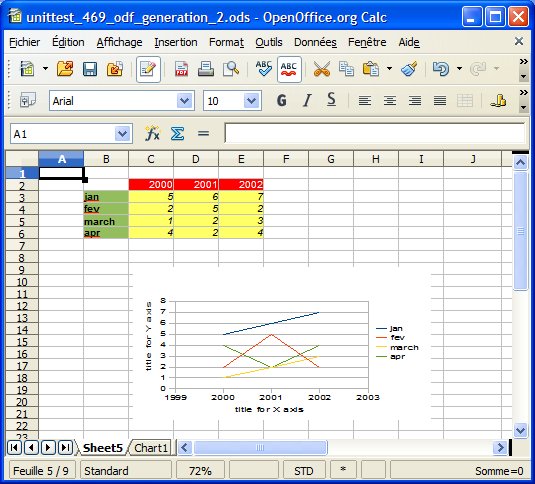
To generate OpenOffice spreadsheets is straight forward :
| Java code |
XlsEngine engine = new XlsEngine();

XlsWorkbook wbk = engine.Open("C:\\input\\MyExistingFile.xls", "");

// 1) export the second worksheet as Open Office
wbk.getWorksheetByIndex(2).getExport().ExportAsOpenOfficeFormat("C:\\output\\filename.ods");

wbk.Close();

// 2) open an existing spreadsheet and export it as Open Office
XlsWorkbook wbk_ = engine.Open("C:\\input\\MyExistingFile.xls", "C:\\output\\filename.ods");

wbk_.Close();
|
| VB code |
Dim engine As CoXlsEngine
Set engine = CreateObject("ExcelGenerator.ARsTDesign")

Dim wbk As IXlsWorkbook
Set wbk = engine.Open("C:\input\MyExistingFile.xls", "")

' 1) export the second worksheet as Open Office
wbk.WorksheetByIndex(2).Export.ExportAsOpenOfficeFormat("C:\output\filename.ods")

wbk.Close

' 2) open an existing spreadsheet and export it as Open Office
XlsWorkbook wbk_ = engine.Open("C:\input\MyExistingFile.xls", "C:\output\filename.ods")

wbk_.Close

Set engine = Nothing
|
| C# code |
xlsgen.CoXlsEngine engine = new xlsgen.CoXlsEngine(); IXlsWorkbook wbk = engine.Open( @"C:\input\MyExistingFile.xls", "" ); // 1) export the second worksheet as Open Office wbk.get_WorksheetByIndex(2).Export.ExportAsOpenOfficeFormat(@"C:\output\filename.ods"); wbk.Close(); // 2) open an existing spreadsheet and export it as Open Office XlsWorkbook wbk_ = engine.Open(@"C:\input\MyExistingFile.xls", @"C:\output\filename.ods"); wbk_.Close(); |
| C/C++ code |
xlsgen::IXlsEnginePtr engine( __uuidof(xlsgen::CoXlsEngine) ); xlsgen::IXlsWorkbookPtr wbk = engine->Open(L"C:\\input\\MyExistingFile.xls", L"" ); // 1) export the second worksheet as Open Office wbk->WorksheetByIndex[2]->Export->ExportAsOpenOfficeFormat(L"C:\\output\\filename.ods"); wbk->Close(); // 2) open an existing spreadsheet and export it as Open Office XlsWorkbook wbk_ = engine->Open(L"C:\\input\\MyExistingFile.xls", L"C:\\output\\filename.ods"); wbk_->Close(); |
The XPS file format makes xlsgen suitable for reporting purposes. The XPS file format was introduced by Microsoft to compete with PDF for fixed representations and printing. It is very compact in size. More information about XPS can be found here (users) and here (developers).

The XPS file output supported natively by xlsgen is compatible with Microsoft's Internet Explorer internal XPS viewer. Simply double-click on a .XPS file and it should open in Internet Explorer.
How to export a worksheet as XPS is straight forward :
| Java code |
XlsEngine engine = new XlsEngine();

XlsWorkbook wbk = engine.Open("C:\\input\\MyExistingFile.xls", "");

// export the second worksheet as xps
wbk.getWorksheetByIndex(2).getExport().ExportAsXPS("C:\\output\\filename.xps");

wbk.Close();
|
| VB code |
Dim engine As CoXlsEngine
Set engine = CreateObject("ExcelGenerator.ARsTDesign")

Dim wbk As IXlsWorkbook
Set wbk = engine.Open("C:\input\MyExistingFile.xls", "")

' export the second worksheet as xps
wbk.WorksheetByIndex(2).Export.ExportAsXPS("C:\output\filename.xps")

wbk.Close

Set engine = Nothing
|
| C# code |
xlsgen.CoXlsEngine engine = new xlsgen.CoXlsEngine(); IXlsWorkbook wbk = engine.Open( @"C:\input\MyExistingFile.xls", "" ); // export the second worksheet as xps wbk.get_WorksheetByIndex(2).Export.ExportAsXPS(@"C:\output\filename.xps"); wbk.Close(); |
| C/C++ code |
xlsgen::IXlsEnginePtr engine( __uuidof(xlsgen::CoXlsEngine) ); xlsgen::IXlsWorkbookPtr wbk = engine->Open(L"C:\\input\\MyExistingFile.xls", L"" ); // export the second worksheet as xps wbk->WorksheetByIndex[2]->Export->ExportAsXPS(L"C:\\output\\filename.xps"); wbk->Close(); |
Another way to create XPS files is to pass .xps filenames directly when making a New(), Open(), NewInMemory(), OpenInMemory() call. Doing so orders xlsgen to create a XPS output file representing the entire spreadsheet (not just the current worksheet of the spreadsheet as in above). This mechanism makes xlsgen as much a genuine XPS generator than an Excel generator :
| Java code |
XlsEngine engine = new XlsEngine();

XlsWorkbook wbk = engine.New( "output.xps" );

XlsWorksheet wksht = wbk.AddWorksheet("samplesheet");
wksht.setLabel(1,2, "Hello world!");

wbk.Close();
|
| VB code |
Dim engine As CoXlsEngine
Set engine = CreateObject("ExcelGenerator.ARsTDesign")

Dim wbk As IXlsWorkbook
Set wbk = engine.New( "output.xps" )

Dim wksht As IXlsWorksheet
Set wksht = wbk.AddWorksheet("samplesheet")

wksht.Label(1,2) = "Hello world!"

wbk.Close

Set engine = Nothing
|
| C# code |
xlsgen.CoXlsEngine engine = new xlsgen.CoXlsEngine(); IXlsWorkbook wbk = engine.New( "output.xps" ); IXlsWorksheet wksht = wbk.AddWorksheet( "samplesheet" ); wksht.set_Label(1,2, "Hello world!"); wbk.Close(); |
| C/C++ code |
xlsgen::IXlsEnginePtr engine( __uuidof(xlsgen::CoXlsEngine) ); xlsgen::IXlsWorkbookPtr wbk = engine->New( L"output.xps" ); xlsgen::IXlsWorksheetPtr wksht = wbk->AddWorksheet( "samplesheet" ); wksht->Label[1][2] = L"Hello world!"; wbk->Close(); |
XPS files generated by xlsgen include cells and their formatting (including conditional formatting applied to it), pictures, charts, visual components (geomaps, ...) and databars. It also enforces a number of page setup options including : the print area, scale (two-way), page breaks, margins, header/footer, and so on.
The XLSB file format (B is for binary) is the binary version of XLSX files. A different file format made for performance in read and write (as a result of the lack of XML, for the most part). Supported features in the XLSB output are :
xlsgen documentation. © ARsT Design all rights reserved.