
|
| Templates |
|
The ability to use an existing Excel workbook as a template to create another Excel workbook is a very powerful feature of xlsgen. Not only existing content and formatting in cells are preserved, rich objects including charts, pivot tables, filters, and even VBA macros are also preserved, i.e. capitalizing once for all.
What templates are? Templates are regular Excel workbooks. In typical scenarios, you would either the use the company template or create your own using Excel. Templates are meant to improve productivity by allowing users to reuse the content from existing files rather than having to recreate or duplicate things all over again and again. For instance, here is a template form :
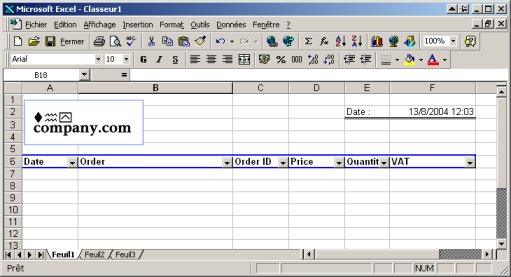
With this template in hand, you can use xlsgen to fill the worksheet with actual data. xlsgen exposes strings, numbers, floats and formulas for that matter. Formatting can be added on a cell-by-cell basis, on a cell range basis, or using conditional formatting. Furthermore, since Excel gives the ability to attach rich objects like charts to ranges of cells, it becomes possible to fill the worksheet with data and have the rich objects automatically reflect the data. Rows below the 6th are ready for this.
Templates enable a bunch of scenarios. This chart showcase demonstrates one typical scenario when it comes to using xlsgen to produce dynamic charts. Here are the basic things you can do with xlsgen :
Reusing the content of an existing Excel file xlsgen implies the following steps :
MyResultingFile.xls.
Open(existingfilename, newfilename) method() rather than the New(newfilename) method. The Open() method call expects the fully qualified filepath of the Excel file to be passed as first parameter. Pass the name of the new Excel file as second parameter. The following code shows how it works :
VB code Dim engine As CoXlsEngine Set engine = CreateObject("ExcelGenerator.ARsTDesign") Dim wbk As IXlsWorkbook Set wbk = engine.Open("c:\input\MyExistingFile.xls", "c:\output\ResultingFile.xls") ... wbk.Close Set engine = Nothing
C# code
C/C++ code { xlsgen::IXlsEnginePtr engine( __uuidof(xlsgen::CoXlsEngine) ); xlsgen::IXlsWorkbookPtr wbk; wbk = engine->Open(L"c:\\input\\MyExistingFile.xls", L"c:\\output\\ResultingFile.xls" ); ... wbk->Close(); }
ResultingFile.xls is an exact copy of the original file, nothing is changed or added. Any additional code will make changes to the resulting file, while preserving the original file intact.

Please note that xlsgen does not prevent you to overwrite your original file, passing MyResultingFile.xls in both parameters of the Open() method in order to update your template file. Although it's generally considered a good habit to keep the template files untouched, its a scenario supported by xlsgen. Use it with caution since it may affect any automated processing chain that would use that template file somewhere else.
Now that we know how to import the content of an existing workbook, let's take a look at more features.
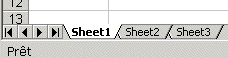
By adding code to the snippet above, we can update the content of existing worksheets, or create new regular worksheets and add content in those. One requirement is that you should always obtain a reference to that worksheet before you start changing the content. Below is an example that updates the content of an existing worksheet and adds content in a new worksheet. The assumption for that scenario to work is that the template file has two worksheets. You can check this by the way :
| VB code |
Dim engine As CoXlsEngine
Set engine = CreateObject("ExcelGenerator.ARsTDesign")

Dim wbk As IXlsWorkbook
Set wbk = engine.Open("c:\input\MyExistingFile.xls", "c:\output\ResultingFile.xls")

' make sure that we have at least two worksheets
If wbk.WorksheetCount < 2 Then

  MsgBox "Error : the workbook has less than two worksheets."

Else

  ' update the content of the second worksheet
  Dim wksht As IXlsWorksheet
  Set wksht = wbk.WorksheetByIndex(2)

  wksht.Label(8, 1) = "Another Label"

  ' create a new worksheet and add some content
  Dim wksht_new As IXlsWorksheet
  Set wksht_new = wbk.AddWorksheet("Sheet3")

  wksht_new.Label(5, 3) = "Label in the new worksheet"

End If

wbk.Close

Set engine = Nothing
|
| C# code |
xlsgen.CoXlsEngineClass excel = new xlsgen.CoXlsEngineClass();

IXlsWorkbook wbk = excel.Open( @"c:\input\MyExistingFile.xls", @"c:\output\ResultingFile.xls" );

// make sure that we have at least two worksheets
if (wbk.get_WorksheetCount < 2)
{
  MessageBox.Show( "Error : the workbook has less than two worksheets.");
}
else
{

  // update the content of the second worksheet
  IXlsWorksheet wksht = wbk.get_WorksheetByIndex(2);

  wksht.set_Label(8,1, "Another Label");

  // create a new worksheet and add some content
  IXlsWorksheet wksht_new = wbk.AddWorksheet("Sheet3");

  wksht_new.set_Label(5,3, "Label in the new worksheet");

}

wbk.Close();
excel = null;
|
| C/C++ code |
{
  xlsgen::IXlsEnginePtr engine( __uuidof(xlsgen::CoXlsEngine) );

  xlsgen::IXlsWorkbookPtr wbk;
  wbk = engine->Open(L"c:\\input\\MyExistingFile.xls", L"c:\\output\\ResultingFile.xls" );

  // make sure that we have at least two worksheets
  if (wbk->WorksheetCount < 2)
  {
    ::MessageBox(NULL, "the workbook has less than two worksheets.", "error", MB_OK);
  }
  else
  {

    // update the content of the second worksheet
    xlsgen::IXlsWorksheetPtr wksht;
    wksht = wbk->WorksheetByIndex[2];

    wksht->Label[8][1] = L"Another Label";

    // create a new worksheet and add some content
	xlsgen::IXlsWorksheetPtr wksht_new;
    wksht_new = wbk->AddWorksheet("Sheet3");

    wksht_new->Label[5][3] = L"Label in the new worksheet";

  }

  wbk->Close();
}
|
Changing the order of worksheets is a snap, just set the DisplayOrder worksheet property to the order in ascending order : the worksheet with index equals to 1 is displayed first, and so on. A sample code which changes the order of the second and third worksheet is as follows :

| VB code |
Dim engine As CoXlsEngine
Set engine = CreateObject("ExcelGenerator.ARsTDesign")

Dim wbk As IXlsWorkbook
Set wbk = engine.Open("c:\input\MyExistingFile.xls", "c:\output\ResultingFile.xls")

Dim wksht_new As IXlsWorksheet
Set wksht_new = wbk.AddWorksheet("Sheet3")

wksht_new.DisplayOrder = 2

wbk.Close

Set engine = Nothing
|
| C# code |
xlsgen.CoXlsEngineClass excel = new xlsgen.CoXlsEngineClass();

IXlsWorkbook wbk = excel.Open( @"c:\input\MyExistingFile.xls", @"c:\output\ResultingFile.xls" );

// create a new worksheet and add some content
IXlsWorksheet wksht_new = wbk.AddWorksheet("Sheet3");

wksht_new.DisplayOrder = 2;

wbk.Close();
excel = null;
|
| C/C++ code |
{
  xlsgen::IXlsEnginePtr engine( __uuidof(xlsgen::CoXlsEngine) );

  xlsgen::IXlsWorkbookPtr wbk;
  wbk = engine->Open(L"c:\\input\\MyExistingFile.xls", L"c:\\output\\ResultingFile.xls" );

  // create a new worksheet and add some content
  xlsgen::IXlsWorksheetPtr wksht_new;
  wksht_new = wbk->AddWorksheet("Sheet3");

  wksht_new->DisplayOrder = 2;

  wbk->Close();
}
|
You can reorder existing or new worksheets, according to your needs. Combined with the hide/delete method explained below, reordering is a powerful way to manage the requirement changes over time while keeping the same template files, i.e. capitalizing once for all.
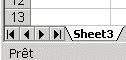
Hiding a worksheet is a regular Excel feature. Hiding and showing a worksheet is something you can change interactively in Excel with the Format / Sheet / Show-Hide menu option. xlsgen makes it easy to do this with code. Hiding a worksheet is a lossless operation, and the content of the impacted worksheet is still there, albeit not displayed. Formulas, or any cell reference to that particular worksheet will still work. Deleting a worksheet however is a more impacting change. Deleting a worksheet permanently removes its content. Make sure that no formulas or cell references target that worksheet. In case of doubt, hide the worksheet instead. The code below hides the first worksheet from the template, delete the second, and then creates a new worksheet :
| VB code |
Dim engine As CoXlsEngine
Set engine = CreateObject("ExcelGenerator.ARsTDesign")

Dim wbk As IXlsWorkbook
Set wbk = engine.Open("c:\input\MyExistingFile.xls", "c:\output\ResultingFile.xls")

' hide the first worksheet
Dim wksht001 As IXlsWorksheet
Set wksht001 = wbk.WorksheetByIndex(1)

wksht001.Hidden = True

' permanently delete the second worksheet
Dim wksht002 As IXlsWorksheet
Set wksht002 = wbk.WorksheetByIndex(2)

wksht002.Delete

' create a new worksheet
Dim wksht_new As IXlsWorksheet
Set wksht_new = wbk.AddWorksheet("Sheet3")

wbk.Close

Set engine = Nothing
|
| C# code |
xlsgen.CoXlsEngineClass excel = new xlsgen.CoXlsEngineClass();

IXlsWorkbook wbk = excel.Open( @"c:\input\MyExistingFile.xls", @"c:\output\ResultingFile.xls" );

// hide the first worksheet
IXlsWorksheet wksht001 = wbk.get_WorksheetByIndex(1);
wksht001.Hidden = true;

// permanently delete the second worksheet
IXlsWorksheet wksht002 = wbk.get_WorksheetByIndex(2);
wksht002.Delete();

// create a new worksheet
IXlsWorksheet wksht_new = wbk.AddWorksheet("Sheet3");

wbk.Close();
excel = null;
|
| C/C++ code |
{
  xlsgen::IXlsEnginePtr engine( __uuidof(xlsgen::CoXlsEngine) );

  xlsgen::IXlsWorkbookPtr wbk;
  wbk = engine->Open(L"c:\\input\\MyExistingFile.xls", L"c:\\output\\ResultingFile.xls" );

  // hide the first worksheet
  xlsgen::IXlsWorksheetPtr wksht001 = wbk->WorksheetByIndex[1];
  wksht001->Hidden = TRUE;

  // permanently delete the second worksheet
  xlsgen::IXlsWorksheetPtr wksht002 = wbk->WorksheetByIndex[2];
  wksht002->Delete();

  // create a new worksheet
  xlsgen::IXlsWorksheetPtr wksht_new = wbk->AddWorksheet("Sheet3");

  wbk->Close();
}
|
Please note that hiding or deleting a worksheet does not take effect immediately, this is the reason why the indexes used in the code above still reflect the original worksheets. Hiding or deleting worksheets takes effect in the Close statement of the generated workbook.
Besides adding and deleting worksheets, you can duplicate them. As of date, rich objects like charts , pictures and so on are incorrectly duplicated, so you probably want to keep the feature running for duplicating cells, formulas and their associated styles. Duplicating a worksheet requires a source and a target. The source is the worksheet being duplicated, that's why the Duplicate method is exposed at the worksheet level. The target is the name of the new worksheet. The worksheet is always added at the tail of all worksheets, and you can put it somewhere else with the DisplayOrder method. Here is a statement in VB that duplicates a worksheet :
| VB code |
...
' duplicate content of worksheet 'wksht' in a new worksheet "new worksheet"
'  the worksheet is added at the tail of existing worksheets
'  use DisplayOrder to reorder the worksheets according to your needs
wksht.Duplicate("new worksheet")
...
|
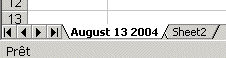
The ability to rename worksheets enables custom scenarios where for instance the worksheets themselves are known in the template file, but their final names are unknown and are dynamically computed, resulting in names that reflect the content of the current worksheet. The code below renames the first worksheet :
| VB code |
Dim engine As CoXlsEngine
Set engine = CreateObject("ExcelGenerator.ARsTDesign")

Dim wbk As IXlsWorkbook
Set wbk = engine.Open("c:\input\MyExistingFile.xls", "c:\output\ResultingFile.xls")

' rename the first worksheet
Dim wksht001 As IXlsWorksheet
Set wksht001 = wbk.WorksheetByIndex(1)
wksht001.Name = "August 13 2004"

wbk.Close

Set engine = Nothing
|
| C# code |
xlsgen.CoXlsEngineClass excel = new xlsgen.CoXlsEngineClass(); IXlsWorkbook wbk = excel.Open( @"c:\input\MyExistingFile.xls", @"c:\output\ResultingFile.xls" ); // rename the first worksheet IXlsWorksheet wksht001 = wbk.get_WorksheetByIndex(1); wksht001.Name = "August 13 2004"; wbk.Close(); excel = null; |
| C/C++ code |
{
  xlsgen::IXlsEnginePtr engine( __uuidof(xlsgen::CoXlsEngine) );

  xlsgen::IXlsWorkbookPtr wbk;
  wbk = engine->Open(L"c:\\input\\MyExistingFile.xls", L"c:\\output\\ResultingFile.xls" );

  // rename the first worksheet
  xlsgen::IXlsWorksheetPtr wksht001 = wbk->WorksheetByIndex[1];
  wksht001->Name = "August 13 2004";

  wbk->Close();
}
|
If you create a file from an existing file, then the resulting file will display in Excel the same default worksheet, unless the worksheet is hidden or deleted. It is possible to select which worksheet is selected when the workbook is opened.
By default, the worksheet will select cell[1,1] located in the top-left corner. It is also possible to change this. In the example below, the second worksheet is selected. The same code also selects a particular range of that worksheet.


| VB code |
Dim engine As CoXlsEngine
Set engine = CreateObject("ExcelGenerator.ARsTDesign")

Dim wbk As IXlsWorkbook
Set wbk = engine.Open("c:\input\MyExistingFile.xls", "c:\output\ResultingFile.xls")

' select the second worksheet, and define the current cell range
Dim wksht002 As IXlsWorksheet
Set wksht002 = wbk.WorksheetByIndex(2)
wksht002.Selected = True
wksht002.Select( 11, 1, 11, 2 )

wbk.Close

Set engine = Nothing
|
| C# code |
xlsgen.CoXlsEngineClass excel = new xlsgen.CoXlsEngineClass(); IXlsWorkbook wbk = excel.Open( @"c:\input\MyExistingFile.xls", @"c:\output\ResultingFile.xls" ); // select the second worksheet, and define the current cell range IXlsWorksheet wksht002 = wbk.get_WorksheetByIndex(2); wksht002.Selected = true; wksht002.Select( 11, 1, 11, 2 ); wbk.Close(); excel = null; |
| C/C++ code |
{
  xlsgen::IXlsEnginePtr engine( __uuidof(xlsgen::CoXlsEngine) );

  xlsgen::IXlsWorkbookPtr wbk;
  wbk = engine->Open(L"c:\\input\\MyExistingFile.xls", L"c:\\output\\ResultingFile.xls" );

  // select the second worksheet, and define the current cell range
  xlsgen::IXlsWorksheetPtr wksht002 = wbk->WorksheetByIndex[2];
  wksht002->Selected = TRUE;
  wksht002->Select( 11, 1, 11, 2 );

  wbk->Close();
}
|
Saving the content of a worksheet inside a .xls file is only one option. Other options include the ability to save the content as XML (angle brackets, fixed schema) and as CSV (semi-colon separated values).
The XML export provides a cross-platform way to save content. XML content follows a schema. The schema used cannot be controlled by the developer, although this could happen in the future based on demand. The schema is conside and self-descriptive to maximize the usefulness of using XML in the first place. The encoding defaults to UTF-8 which means strings are encoded in ways understandable in any country of the world.
The XML output is made of a header followed by the content of the worksheet. The content of the worksheet is a collection of rows. Each rows contains a collection of columns. Each column contains the content of a cell. At this point, the developer can optionally choose to add what is known as data types. Data types are quite verbose but provide a great way to know which data type identifies a given cell, for instance a time type. After all, the more typed the content is, the more accurate are operations made on them. Here is an example of XML content :
<?xml version="1.0"?>
<WORKSHEET NAME="Feuil1">
<DIMENSIONS>
 <ROWMIN>4</ROWMIN>
 <ROWMAX>4</ROWMAX>
 <COLMIN>3</COLMIN>
 <COLMAX>5</COLMAX>
</DIMENSIONS>
<ROWS>
  <R>
    <C T="number">2</C>
    <C T="number">3</C>
    <C T="number">4</C>
  </R>
 </ROWS>
</WORKSHEET>
Producing the XML for a given worksheet is achieved by requesting the Export object from the worksheet (see the IXlsWorksheetExport interface), and then call the exporter of your choice with appropriate parameters.
| VB code |
Dim engine As CoXlsEngine
Set engine = CreateObject("ExcelGenerator.ARsTDesign")

Dim wbk As IXlsWorkbook
Set wbk = engine.Open("c:\input\MyExistingFile.xls", "c:\output\ResultingFile.xls")

' get the second worksheet
Dim wksht002 As IXlsWorksheet
Set wksht002 = wbk.WorksheetByIndex(2)

' export the worksheet as xml (export the content and data types)
wksht002.Export.ExportAsXML("filename.xml", True)

wbk.Close

Set engine = Nothing
|
| C# code |
xlsgen.CoXlsEngineClass excel = new xlsgen.CoXlsEngineClass();

IXlsWorkbook wbk = excel.Open( @"c:\input\MyExistingFile.xls", @"" );

// get the second worksheet
IXlsWorksheet wksht002 = wbk.get_WorksheetByIndex(2);

// export the worksheet as xml (export the content and data types)
wksht002.Export.ExportAsXML("filename.xml", 1 /*datatype*/);

wbk.Close();
excel = null;
|
| C/C++ code |
{
  xlsgen::IXlsEnginePtr engine( __uuidof(xlsgen::CoXlsEngine) );

  xlsgen::IXlsWorkbookPtr wbk;
  wbk = engine->Open(L"c:\\input\\MyExistingFile.xls", L"" );

  // get the second worksheet
  xlsgen::IXlsWorksheetPtr wksht002 = wbk->WorksheetByIndex[2];

  // export the worksheet as xml (export the content and data types)
  wksht002->Export->ExportAsXML(L"filename.xml", TRUE /*datatype*/);

  wbk->Close();
}
|
In the content, some characters are replaced with XML entities. These are :
CSV is a semi-colon separated file format. CSV actually stands for comma-separated values, but for many years in the software industry commas have proven to be problematic to disambiguate floating point separators, locales and content. The worksheet is a grid whose content is exported as CSV where each row of the grid is expressed as semi-colon separated fields, ending with a carriage return character. Whenever the content contains a semi-colon, the content is surrounded by double quotes. Double quotes in content are themselves doubled. By definition, a CSV file does not define the dimensions of the worksheet. It's raw content. That said, the width and height can be computed by reading the file and incrementing an appropriate counter.
Exporting the content of a worksheet as CSV is analogous to XML.See the IXlsWorksheetExport interface. The difference is that the developer can choose the encoding between UTF-8 and the current local charset.
Here is an example CSV file :
hghhhgf;fghgf hgfhgf;fh gfhfh
ttryty;yrtytryt;tytry tryrtyrty
tt;trtrettrtrettetertret;rtrt
ytuuyuu;tuuuututyuy;tyuytuytuuyt
And here is how to export a worksheet as CSV with code :
| VB code |
Dim engine As CoXlsEngine
Set engine = CreateObject("ExcelGenerator.ARsTDesign")

Dim wbk As IXlsWorkbook
Set wbk = engine.Open("c:\input\MyExistingFile.xls", "c:\output\ResultingFile.xls")

' get the second worksheet
Dim wksht002 As IXlsWorksheet
Set wksht002 = wbk.WorksheetByIndex(2)

' export the worksheet as csv (export the content, UTF-8 encoding)
wksht002.Export.ExportAsCSV("filename.xml", True)

wbk.Close

Set engine = Nothing
|
| C# code |
xlsgen.CoXlsEngineClass excel = new xlsgen.CoXlsEngineClass();

IXlsWorkbook wbk = excel.Open( @"c:\input\MyExistingFile.xls", @"" );

// get the second worksheet
IXlsWorksheet wksht002 = wbk.get_WorksheetByIndex(2);

// export the worksheet as csv (export the content, UTF-8 encoding)
wksht002.Export.ExportAsCSV("filename.xml", 1 /*use UTF8 encoding*/);

wbk.Close();
excel = null;
|
| C/C++ code |
{
  xlsgen::IXlsEnginePtr engine( __uuidof(xlsgen::CoXlsEngine) );

  xlsgen::IXlsWorkbookPtr wbk;
  wbk = engine->Open(L"c:\\input\\MyExistingFile.xls", L"" );

  // get the second worksheet
  xlsgen::IXlsWorksheetPtr wksht002 = wbk->WorksheetByIndex[2];

  // export the worksheet as csv (export the content, UTF-8 encoding)
  wksht002->Export->ExportAsCSV(L"filename.xml", TRUE /*use UTF8 encoding*/);

  wbk->Close();
}
|
There is a built-in dimension properties to query whenever you need to know the exact boundaries of a worksheet. Those properties are updated in real-time so you don't need to be at a particular stage only to query those. Needless to say, having those properties simply cuts the need for row/column iterations. See the IXlsWorksheetDimensions interface. Here is how to do this :
| VB code |
Dim engine As CoXlsEngine
Set engine = CreateObject("ExcelGenerator.ARsTDesign")

Dim wbk As IXlsWorkbook
Set wbk = engine.Open("c:\input\MyExistingFile.xls", "c:\output\ResultingFile.xls")

' get the second worksheet
Dim wksht002 As IXlsWorksheet
Set wksht002 = wbk.WorksheetByIndex(2)

' compute dimensions
Dim left
left = wksht002.Dimensions.FirstColumn

Dim right
right = wksht002.Dimensions.LastColumn

Dim top
top = wksht002.Dimensions.FirstRow

Dim bottom
bottom = wksht002.Dimensions.LastRow

wbk.Close

Set engine = Nothing
|
| C# code |
xlsgen.CoXlsEngineClass excel = new xlsgen.CoXlsEngineClass(); IXlsWorkbook wbk = excel.Open( @"c:\input\MyExistingFile.xls", @"" ); // get the second worksheet IXlsWorksheet wksht002 = wbk.get_WorksheetByIndex(2); // compute dimensions int left = wksht002.Dimensions.FirstColumn; int right = wksht002.Dimensions.LastColumn; int top = wksht002.Dimensions.FirstRow; int bottom = wksht002.Dimensions.LastRow; wbk.Close(); excel = null; |
| C/C++ code |
{
  xlsgen::IXlsEnginePtr engine( __uuidof(xlsgen::CoXlsEngine) );

  xlsgen::IXlsWorkbookPtr wbk;
  wbk = engine->Open(L"c:\\input\\MyExistingFile.xls", L"" );

  // get the second worksheet
  xlsgen::IXlsWorksheetPtr wksht002 = wbk->WorksheetByIndex[2];

  // compute dimensions
  int left   = wksht002->Dimensions->FirstColumn;
  int right  = wksht002->Dimensions->LastColumn;
  int top    = wksht002->Dimensions->FirstRow;
  int bottom = wksht002->Dimensions->LastRow;

  wbk->Close();
}
|
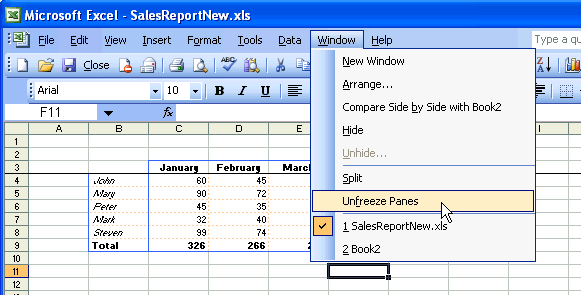
Freeing a pane allows to scroll the worksheet while keeping a part of it visible. In Excel, this feature is available from the Windows menu. You can freeze horizontally or vertically. In the example above, it's a horizontal freeze. See IXlsWorksheetPane interface. Here is how to achieve this :
| VB code |
Dim engine As CoXlsEngine
Set engine = CreateObject("ExcelGenerator.ARsTDesign")

Dim wbk As IXlsWorkbook
Set wbk = engine.Open("c:\input\MyExistingFile.xls", "c:\output\ResultingFile.xls")

' get the first worksheet
Dim wksht As IXlsWorksheet
Set wksht = wbk.WorksheetByIndex(1)

' freeze the 4th row downwards
wksht.HorizontalPane.SplitLimit = 4
wksht.HorizontalPane.Freeze = True
' in order to unfreeze, set Freeze = False

wbk.Close

Set engine = Nothing
|
| C# code |
xlsgen.CoXlsEngineClass excel = new xlsgen.CoXlsEngineClass(); IXlsWorkbook wbk = excel.Open( @"c:\input\MyExistingFile.xls", @"" ); // get the first worksheet IXlsWorksheet wksht = wbk.get_WorksheetByIndex(1); // freeze the 4th row downwards wksht.HorizontalPane.set_SplitLimit(4); wksht.HorizontalPane.set_Freeze(1); // in order to unfreeze, set Freeze = 0 wbk.Close(); excel = null; |
| C/C++ code |
{
  xlsgen::IXlsEnginePtr engine( __uuidof(xlsgen::CoXlsEngine) );

  xlsgen::IXlsWorkbookPtr wbk;
  wbk = engine->Open(L"c:\\input\\MyExistingFile.xls", L"" );

  // get the first worksheet
  xlsgen::IXlsWorksheetPtr wksht = wbk->WorksheetByIndex[1];

  // freeze the 4th row downwards
  wksht->HorizontalPane->SplitLimit = 4;
  wksht->HorizontalPane->Freeze = TRUE;
  //   in order to unfreeze, set Freeze = FALSE

  wbk->Close();
}
|
Likewise you can unfreeze a frozen pane by passing the same argument than for a freeze.
The reference documentation for the freeze interface is here.
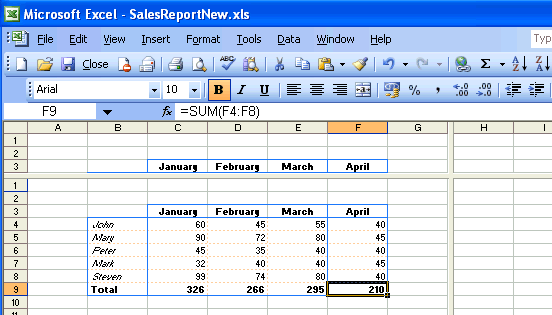
Whenever you need more than one view of the current worksheet, you can split it in pieces, horizontally and vertically. When a pane is split, it has his own cursor and thus parts of the worksheet can be visible in several panes at the same time, just as in the screen capture above.
Programmatically accessing the panes is very easy, thanks to the HorizontalPane and VerticalPane objects available at the worksheet object level, and then splitting is a matter of expliciting where the split should be made, optionally what is the first row or column that should be visible in the pane, and eventually set the Split property to true. See IXlsWorksheetPane interface.
Likewise, unsplitting in one direction or both is achieved by setting the Split property to false. Here is a sample code :
| VB code |
Dim engine As CoXlsEngine
Set engine = CreateObject("ExcelGenerator.ARsTDesign")

Dim wbk As IXlsWorkbook
Set wbk = engine.Open("c:\input\MyExistingFile.xls", "c:\output\ResultingFile.xls")

' get the first worksheet
Dim wksht As IXlsWorksheet
Set wksht = wbk.WorksheetByIndex(1)

' split vertically at column H
wksht.VerticalPane.SplitLimit = 8
wksht.VerticalPane.FirstVisibleItemAfterSplit = 8
wksht.VerticalPane.Split = True
'   in order to unsplit, set Split = False

wbk.Close

Set engine = Nothing
|
| C# code |
xlsgen.CoXlsEngineClass excel = new xlsgen.CoXlsEngineClass(); IXlsWorkbook wbk = excel.Open( @"c:\input\MyExistingFile.xls", @"" ); // get the first worksheet IXlsWorksheet wksht = wbk.get_WorksheetByIndex(1); // split vertically at column H wksht.VerticalPane.set_SplitLimit(8); wksht.VerticalPane.set_FirstVisibleItemAfterSplit(8); wksht.VerticalPane.set_Split(1); // in order to unsplit, set Split = 0 wbk.Close(); excel = null; |
| C/C++ code |
{
  xlsgen::IXlsEnginePtr engine( __uuidof(xlsgen::CoXlsEngine) );

  xlsgen::IXlsWorkbookPtr wbk;
  wbk = engine->Open(L"c:\\input\\MyExistingFile.xls", L"" );

  // get the first worksheet
  xlsgen::IXlsWorksheetPtr wksht = wbk->WorksheetByIndex[1];

  // split vertically at column H
  wksht->VerticalPane->SplitLimit = 8;
  wksht->VerticalPane->FirstVisibleItemAfterSplit = 8;
  wksht->VerticalPane->Split = TRUE;
  //   in order to unsplit, set Split = FALSE

  wbk->Close();
}
|