
|
| xlsgen > overview > Where to start with cells? |
|
Cells are accessible from multiple places :
This is the main and preferred method to access cells content either on a cell-by-cell basis, or whenever large blocks of data need to be put in cells. The programming language you are using (C++, VB, ...) provides the necessary iteration keywords required for that matter (for loops, while loops, ...).
|
| What kind of content in cells? |
|
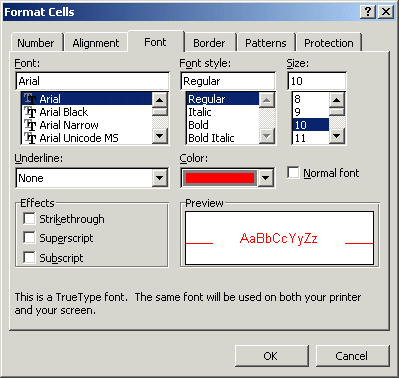
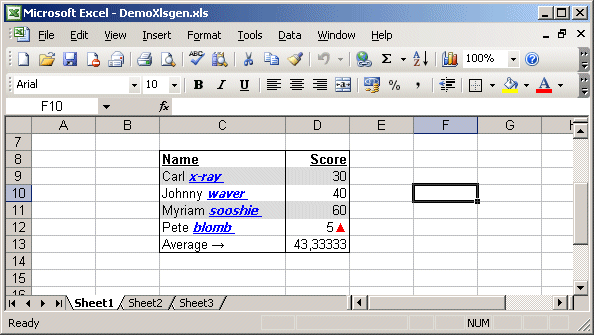
Cells contain data and are associated several optional additional information including :
Number property in that cell returns 3, using the Label property in that cell returns "3", using the FormattedLabel property returns "3,00".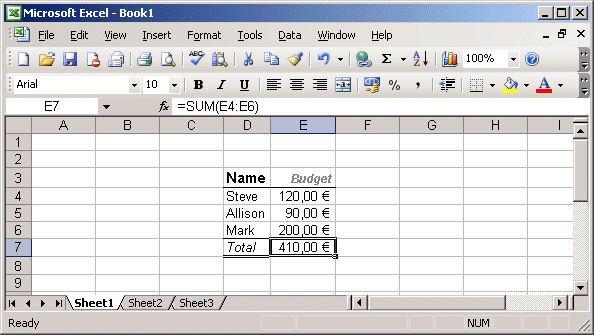
Cell E7 contains 410.00 €, which is calculated dynamically at run-time as a result of the formula =SUM(E4:E6). The formula is displayed by bringing the formula bar in.
|
| How to put content in cells with code? |
|
Make sure to have a current worksheet to work on (wksht). If you don't know how to do this, read the get started section.
In the code below, we put a label and number in columns C9 and C10. Code snippets are provided for each language.
| Java code |
worksheet.putLabel(9,3, "Avril"); // put Avril in C9 worksheet.putNumber(10,3, 10); // put 10 in C10 worksheet.putDate(4, 3, "Jan, 01 2006"); // put Date in C4 |
| VB code |
worksheet.Label(9, 3) = "Avril" ' put Avril in C9 worksheet.Number(10, 3) = 10 ' put 10 in C10 worksheet.Date(4, 3) = "Jan, 01 2006" ' put Date in C4 |
| C# code |
worksheet.set_Label(9,3, "Avril"); // put Avril in C9 worksheet.set_Number(10,3, 10); // put 10 in C10 worksheet.set_Date(4, 3, "Jan, 01 2006"); // put Date in C4 |
| C/C++ code |
worksheet->Label[9][3] = L"Avril"; // put Avril in C9 worksheet->Number[10][3] = 10; // put 10 in C10 worksheet->Date[4][3] = L"Jan, 01 2006"; // put Date in C4 |
Regardless the programming language, cell references always start at 1.
The process can be iterated. For instance, to fill 50 rows of content that changes, you can use the following code :
| Java code |
for (int i = 1; i < 50; i++) worksheet.putNumber(9 + i, 3, 10 + i); // put 10 + i in cells |
| VB code |
Dim i For i = 1 To 50 worksheet.Number(9 + i, 3) = 10 + i ' put 10 + i in cells Next |
| C# code |
for (int i = 1; i < 50; i++) worksheet.set_Number(9 + i, 3, 10 + i); // put 10 + i in cells |
| C/C++ code |
for (int i = 1; i < 50; i++) worksheet->Number[9 + i][3] = 10 + i; // put 10 + i in cells |
While passing a (row, col) pair is intuitive enough, especially when implementing a programming scenario, it is always interesting to have the direct use of the Excel column labelling, as in :
| Java code |
worksheet.NewRange("C4").putLabel("Avril");
worksheet.NewRange("C6:E7;F10:F12").putNumber(10);
|
| VB code |
worksheet.NewRange("C4").Label = "Avril"
worksheet.NewRange("C6:E7;F10:F12").Number = 10
|
| C# code |
worksheet.get_NewRange("C4").Label = "Avril";
worksheet.get_NewRange("C6:E7;F10:F12").Number = 10;
|
| C/C++ code |
worksheet->NewRange(L"C4")->Label = L"Avril"; worksheet->NewRange(L"C6:E7;F10:F12")->Number = 10; |
Cells are identified by (row, column) pairs. For some users however, the typical Excel notation such as B5 or C2 feels more natural, so xlsgen offers a mechanism for converting back and forth cell coordinates.
For instance, in order to know that B is the second column (trivial), and that AA is the 27-th column (a little less trivial), there is a converter available at the worksheet level :
| C/C++ code |
int column = worksheet->CellColumnFromAx[L"AA5"]; // returns 27 because AA is the 27-th column |
Date/time values play a special role because of their nature. xlsgen uses the user regional settings (Windows control panel) to convert date/time values back and forth into numbers, i.e. which is how date/time values are stored internally. In addition to this, for date/time values to be displayed correctly in Excel, cells must be associated to an appropriate number format. In the example below, we add a date, and then read it back.
| VB code |
Dim s As IXlsStyle Set s = worksheet.NewStyle s.Format = "d mmm yyyy" s.Apply worksheet.Date(4,3) = "1 Jan 2006" |
| C# code |
IXlsStyle s = worksheet.NewStyle();
s.Format = "d mmm yyyy";
s.Apply();

worksheet.set_Date(4,3, "1 Jan 2006");

// you can also use the native .NET date type
DateTime d = DateTime.Parse("1 Jan 2006");
worksheet.set_Float(5,3, d.ToOADate());
|
| C/C++ code |
xlsgen::IXlsStylePtr s = worksheet->NewStyle(); s->Format = L"d mmm yyyy"; s->Apply(); worksheet->Date[4][3] = L"1 Jan 2006"; |
The ability to read and re-write cell values opens a lot of scenarios. Using xlsgen, you can read the content of cells of an existing Excel workbook, and you may reassign new values to those cells. You can also do introspection like knowing whether or not the cell stores a formula.
More than cell values, you can extract formulas, styles, as well as existing ranges.
Reusing cell values is useful in a bunch of scenarios. xlsgen allows exactly that, it can extract strings, numbers floats, and date/time values from any cell.
In a typical scenario, the user would extract the number in some cell, do some processing with it, and put the resulting value back in that cell. The code below shows exactly that. In this example, the numbers are multiplied by 2 :


| VB code |
Dim engine As CoXlsEngine
Set engine = CreateObject("ExcelGenerator.ARsTDesign")

Dim wbk As IXlsWorkbook
Set wbk = engine.Open("c:\input\MyExistingFile.xls", "c:\output\ResultingFile.xls")

' extract the values of cell B3, B4 and B5
Dim worksheet As IXlsWorksheet
Set worksheet = wbk.WorksheetByIndex(1)

MsgBox "Content of cell B3 is : " & worksheet.Label(3,2)
MsgBox "Content of cell B4 is : " & worksheet.Number(4,2)
MsgBox "Content of cell B5 is : " & worksheet.Float(5,2)
MsgBox "Content of cell B6 is : " & worksheet.Date(6,2)

' do some processing, and put the values back
worksheet.Number(4, 2) = worksheet.Number(4, 2) * 2
worksheet.Float(5, 2)  = worksheet.Float(5, 2) * 2

wbk.Close

Set engine = Nothing
|
| C# code |
xlsgen.CoXlsEngine excel = new xlsgen.CoXlsEngine(); IXlsWorkbook wbk = excel.Open( @"c:\input\MyExistingFile.xls", @"c:\output\ResultingFile.xls" ); // extract the values of cell B3, B4 and B5 IXlsWorksheet worksheet = wbk.get_WorksheetByIndex(1); MessageBox.Show( "Content of cell B3 is : " + worksheet.get_Label(3,2) ); MessageBox.Show( "Content of cell B4 is : " + worksheet.get_Number(4,2) ); MessageBox.Show( "Content of cell B5 is : " + worksheet.get_Float(5,2) ); MessageBox.Show( "Content of cell B6 is : " + worksheet.get_Date(6,2) ); // do some processing, and put the values back worksheet.set_Number(4,2, worksheet.get_Number(4, 2) * 2 ); worksheet.set_Float(5,2, worksheet.get_Float(5, 2) * 2 ); wbk.Close(); excel = null; |
| C/C++ code |
#include <atlbase.h>

{
  USES_CONVERSION;
  xlsgen::IXlsEnginePtr engine( __uuidof(xlsgen::CoXlsEngine) );

  xlsgen::IXlsWorkbookPtr wbk;
  wbk = engine->Open(L"c:\\input\\MyExistingFile.xls", L"c:\\output\\ResultingFile.xls" );

  // extract the values of cell B3, B4 and B5
  xlsgen::IXlsWorksheetPtr worksheet = wbk->WorksheetByIndex[1];

  BSTR s = worksheet->Label[3][2];
  ::MessageBox(NULL, OLE2T(s), "Content of cell B3 is : ", MB_OK);
  ::SysFreeString(s);

  char tmp[32];
  int n = worksheet->Number[4][2];
  sprintf(tmp, "%d", n);
  ::MessageBox(NULL, tmp, "Content of cell B4 is : ", MB_OK);

  double d = worksheet->Float[5][2];
  sprintf(tmp, "%f", d);
  ::MessageBox(NULL, tmp, "Content of cell B5 is : ", MB_OK);

  BSTR s_date = worksheet->Date[6][2];
  ::MessageBox(NULL, tmp, "Content of cell B6 is : ", MB_OK);
  ::SysFreeString(s_date);

  // do some processing, and put the values back
  worksheet->Number[4][2] = worksheet->Number[4][2] * 2;
  worksheet->Float[5][2] = worksheet->Float[5][2] * 2;

  wbk->Close();
}
|
Default cell values are : empty string when requesting the cell value as a string (Label), 0 when requesting the cell value as a number (Number) and 0.0 when requesting the cell value as a float (Float).
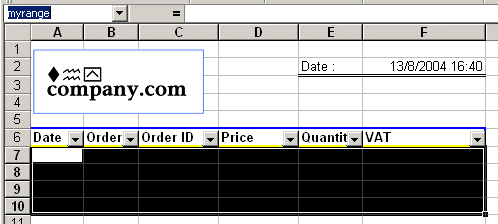
Named ranges can be reused. One scenario reuses the cell range defined along with each named range. Another scenario updates the definition of that cell range. For a more comprehensive explanation of ranges, see the following showcase. Ranges are a very productive way to apply formatting to cells in a single statement. The following code both reuses an existing range :
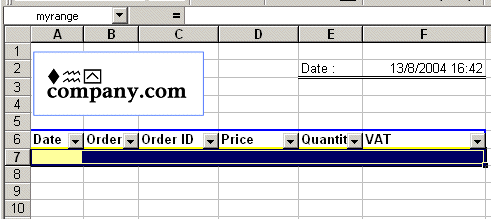
| VB code |
Dim engine As CoXlsEngine
Set engine = CreateObject("ExcelGenerator.ARsTDesign")

Dim wbk As IXlsWorkbook
Set wbk = engine.Open("c:\input\MyExistingFile.xls", "c:\output\ResultingFile.xls")

' extract range "myrange"
Dim worksheet As IXlsWorksheet
Set worksheet = wbk.WorksheetByIndex(1)
Dim myrange As IXlsRange
Set myrange = worksheet.Range("myrange")
' redefine the boundaries, and change the background color
myrange.Range = L"R7C1:R7C6"
myrange.Style.Pattern.BackgroundColor = &HFFFF00
myrange.Apply()

wbk.Close

Set engine = Nothing
|
| C# code |
xlsgen.CoXlsEngine excel = new xlsgen.CoXlsEngine();

IXlsWorkbook wbk = excel.Open( @"c:\input\MyExistingFile.xls", @"c:\output\ResultingFile.xls" );

// extract range "myrange"
IXlsWorksheet worksheet = wbk.get_WorksheetByIndex(1);
IXlsRange myrange = worksheet.get_Range("myrange");
if (myrange != null)
{
  myrange.Range = L"R7C1:R7C6"; // redefine the range boundaries
  // and change the background color
  myrange.Style.Pattern.BackgroundColor = 0xFFFF00;
  myrange.Apply();
}

wbk.Close();
excel = null;
|
| C/C++ code |
{
  xlsgen::IXlsEnginePtr engine( __uuidof(xlsgen::CoXlsEngine) );

  xlsgen::IXlsWorkbookPtr wbk;
  wbk = engine->Open(L"c:\\input\\MyExistingFile.xls", L"c:\\output\\ResultingFile.xls" );

  // extract range "myrange"
  xlsgen::IXlsWorksheetPtr worksheet = wbk->WorksheetByIndex[1];
  xlsgen::IXlsRangePtr myrange = worksheet->Range[L"myrange"];
  if (myrange)
  {
    // redefine the range boundaries
    myrange->Range = L"R7C1:R7C6";
    // and change the background color
    myrange->Style->Pattern->BackgroundColor = 0xFFFF00;
    myrange->Apply();
  }

  wbk->Close();
}
|
More range capabilities are explained here.
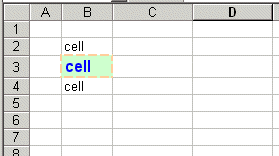
Since adding styles and formatting to cells can be a daunting and time-consuming task, whether interactively or using code, it's actually much more productive to be able to reuse existing styles as much as possible. Reusing styles programmatically is pretty much like the ApplyStyle toolbar shortcut that allows to apply the current selection formatting onto another selection.
In the context of templates, it's possible to extract an existing style given a cell (row, column) coordinate pair. The code below shows how it works :

| VB code |
Dim engine As CoXlsEngine
Set engine = CreateObject("ExcelGenerator.ARsTDesign")

Dim wbk As IXlsWorkbook
Set wbk = engine.Open("c:\input\MyExistingFile.xls", "c:\output\ResultingFile.xls")

' extract the existing style in cell B3
Dim worksheet As IXlsWorksheet
Set worksheet = wbk.WorksheetByIndex(1)

Dim style As IXlsStyle
Set style = worksheet.StyleFromLocation(3, 2) ' cell B3
style.Apply

' add content using this style
worksheet.Label(4, 4) = "data1"
worksheet.Label(5, 4) = "data2"
worksheet.Label(6, 4) = "data3"

wbk.Close

Set engine = Nothing
|
| C# code |
xlsgen.CoXlsEngine excel = new xlsgen.CoXlsEngine(); IXlsWorkbook wbk = excel.Open( @"c:\input\MyExistingFile.xls", @"c:\output\ResultingFile.xls" ); // extract the existing style in cell B3 IXlsWorksheet worksheet = wbk.get_WorksheetByIndex(1); IXlsStyle style = worksheet.get_StyleFromLocation(3, 2); // cell B3 style.Apply(); // add content using this style worksheet.set_Label(4,4, "data1"); worksheet.set_Label(5,4, "data2"); worksheet.set_Label(6,4, "data3"); wbk.Close(); excel = null; |
| C/C++ code |
{
  xlsgen::IXlsEnginePtr engine( __uuidof(xlsgen::CoXlsEngine) );

  xlsgen::IXlsWorkbookPtr wbk;
  wbk = engine->Open(L"c:\\input\\MyExistingFile.xls", L"c:\\output\\ResultingFile.xls" );

  // extract the existing style in cell B3
  xlsgen::IXlsWorksheetPtr worksheet = wbk->WorksheetByIndex[1];

  xlsgen::IXlsStylePtr style = worksheet->StyleFromLocation[3][2]; // cell B3
  style->Apply();

  // add content using this style
  worksheet->Label[4][4] = L"data1";
  worksheet->Label[5][4] = L"data2";
  worksheet->Label[6][4] = L"data3";

  wbk->Close();
}
|
There are two ways to Copy and Paste cells using the xlsgen object model. The first one is explicit, and works on a cell by cell basis. The other defers the bulk of the work to xlsgen. This mechanism works across worksheets of the same workbook or not. For instance, using VB :
| VB code |
' Let's assume we have two worksheets in our workbook ' Dim worksheet1 As IXlsWorksheet ' Dim worksheet2 As IXlsWorksheet ' Copy the content of cell [3][9] elsewhere worksheet2.Label(3,4) = worksheet1.Label(3,9) |
To copy/paste cells without worrying about how many cells to copy/paste, and without worrying what is the actual data being stored, please consider the powerful range-based copy/paste method that not only does all the work for you, but also allows to set paste options such as copying only the values not the formulas.
If you want to know whether a given cell stores a formula, you can use the following statement, here in VB :
...
  ' Visual Basic code follows

  If worksheet.ContainsFormula(5,3) = True Then
    MsgBox "This cell contains a formula"
  Else
    MsgBox "This cell does not contain a formula"
  End If
...
See the IXlsWorksheet interface.
...
  ' Visual Basic code follows

  If Not worksheet.MergedCells(5,3) is Nothing Then
    MsgBox "This cell is part of a merged cell grouping"
  Else
    MsgBox "This cell is not part of a merged cell grouping"
  End If
...
See the IXlsWorksheet interface and then IXlsMergedCells interface.
...
  ' Visual Basic code follows

  int datatype = worksheet.CellType(5,3)
  ' returns an enumerated type whose value is one of
  '   datatype_notapplicable   = 0,
  '   datatype_number          = 1,
  '   datatype_float           = 2,
  '   datatype_double          = 3,
  '   datatype_date            = 4,
  '   datatype_time            = 5,
  '   datatype_datetime        = 6,
  '   datatype_string          = 7
  '   datatype_boolean         = 8,
  '   datatype_error           = 9

...
See the enumDataType enumeration.
...
  ' Visual Basic code follows

  int metadatatype = worksheet.CellMetadataType(5,3)
  ' returns an enumerated type whose value is a bit-wise combination of
  '    metadatatype_notapplicable  = 0,
  '    metadatatype_hyperlink      = 1,
  '    metadatatype_formula        = 2
  '    metadatatype_mergedcells    = 4,
  '    metadatatype_datavalidation = 8
...
The metadata types are logically combined, i.e. a cell can be an hyperlink and part of merged cells at the same time. See the enumMetadataType enumeration.
xlsgen documentation. © ARsT Design all rights reserved.